Category: Class Papers

  • CISS 445 – Cloud Computing

    Course Paper: Cloud Computing
    Rian Booyer
    CISS 445 – Programming Languages
    COURSE PAPER: CLOUD COMPUTING

               In this paper I will be discussing cloud computing, more specifically several aspects of it; what it is with a basic definition, types of cloud computing, specific service types that are in relation to cloud computing, discussing a few of the most common providers and finally some mentions of security in cloud computing.

    What is Cloud Computing?

                What is cloud computing? Well according to Eric Knorr of Infoworld.com cloud computing consists of two parts the first part deals with how a company or organization can contract out to a provider who provides computing time for workloads of data and the processing of this data is performed over the internet. Secondly Eric states that the Cloud Service Provider provides these resources on demand for companies and organizations that can be scaled to meet the specific needs of those organizations or corporations on an as needed basis. The Cloud Service Provider (CSP) does this through a very advanced provisioning of their own infrastructure through offering different types of service levels that can either be rented out, provided on a subscription base, or paid on a per resource value scale (Knorr, 2018).

                In one way you can think about why a company would want to do this but, in a way, this helps companies, especially smaller companies on different levels. The company or organization may not have the technical expertise to develop their own systems for example or may not have enough of a budget to implement the complicated infrastructure such as servers, network, and personnel needed to run the system the company needs to put in place just to make money. Some providers of cloud computing services also specialize in one way or another to provide specific types of services to their customers from basic server infrastructure to complete software package solutions.  

    Types of Cloud Computing Deployment

                There are three main ways to deploy cloud computing: Public, Private, and Hybrid type systems. Each type has its own merit for use and reasons behind the choice of a system. When a company is considering a choice between the different types they need to think long and hard about what the requirements are of the total solution for the company and which deployment strategy will fit their specific requirements.

    Public Cloud

    In a public cloud system, a Cloud Service Provider (CSP) owns the servers and infrastructure and charges a fee for an organization to use its resources. The use of a purely public cloud can vary from fully online software packages provided to an organization to something as simple as data storage. Often the services provided are a mixture of many types and ranges of resources and applications and can even be migrated to the cloud from older local sources to new cloud-based applications or solutions (Laudon, 20170117, p. 190) (“Types of Cloud Computing”, 2018).

    Let me give an example, Company Y decides that their plan to implement a new corporate IT solution is too expensive to implement since they are a multi-national corporation that has users based around the world that need to be able to access the solutions resources from multiple locations on mobile devices. The implementation of the solution may require extensive and expensive infrastructure implementation and even more expensive security controls. Company Y may be able to use a completely public cloud-based solution for their business not only to reduce the costs of implementation but also the implementation of security and management controls that would be needed could primarily be handled by the Cloud Service Provider.

    Private Cloud

                A private cloud system is like a public system, but it is completely owned by the building organization and all the security, management, and support for the system is handled by that corporation. Private cloud systems can either resemble a public cloud system where the resources are dynamic in allocation or they can resemble a more traditional solution where all the resources are completely dedicated for a single task. One huge benefit of this type of cloud deployment strategy is the ability to retain full control not only of your data but also how the system handles the needed computations and the infrastructure. A large downfall would be the upfront cost of the system and the costs to maintain the system while also being completely responsible for system failures and data breaches to the system (Laudon, 20170117, p. 190) (“Types of Cloud Computing”, 2018).  

                Let’s say Company Y decides that their data is so sensitive that they need to keep a lid on how the data is handled, they need to design and code custom software to handle said data, but they also need control over how the data is provided to the different parts of the company without the risk of outside interference while still providing access to their company software to their employee’s and others that need access to it over the internet (or intranet depending on the setup). They would have to not only invest in datacenter servers to handle the storage of the data to application servers to provide access to the specific portions of the software (presentation, analysis, database access, etc.) but also implement management and security controls to prevent data breaches, loss of data. All this would cost a pretty penny against their corporate budget and would have to be reflected in the cost analysis and risk analysis of their system development life cycle (as opposed to the software development life cycle).

    Hybrid Cloud

                Hybrid clouds combine parts of the Private and Public cloud deployment. The deployment can vary but one type I have studied in the past is how a company can pay for the software on a cloud computing platform but keep the data that is used stored on in house servers. This way they can make sure that the data is secure or as secure as they can get in today’s day and age. Hybrid clouds allow you to mix and match what you want to keep in house and what you wish to be provided by a Cloud Service Provider (CSP). According to Amazon’s AWS site many organizations use this to extend the capabilities of their existing systems without the cost of the needed infrastructure required for the expansion (“Types of Cloud Computing”, 2018). Laudon in his textbook Management information systems mentions that many organizations will use their internal systems for the most critical core activities while using the cloud systems for “less-critical systems or for additional processing capacity during peak business periods” (Laudon, 2017, pg. 190). To explain this, we can go to another example.

                Company X is an automotive company that produces motorcycles and their production and design sections use different data and different processing needs on their in-house system. Sometimes that system lags at specific times of the day and during their peak sales periods of the year. By implementing a hybrid system, they can shift part of their work to a Cloud Service Provider (CSP) to handle the overflow without having to invest in extra infrastructure to expand their current in-house systems. This further saves them the cost and hustle of remodeling their one-hundred-year-old building to handle the extra power, network wiring, etc.

    Cloud Computing As A Service

                Different Cloud Service Providers (CSP) provide different styles of services. There are three main service types that are available today: Software as a Service (SaaS), Platform as a Service (PaaS), and Infrastructure as a Service (IaaS). More companies are coming out with new ways to provide cloud computing with new business service models popping up daily.

    Software as a Service – SaaS

                Software as a Service is just that, software provided by a Cloud Service Provider (CSP) for a fee. The software is accessed over the internet or installed locally while the data and main processing power is done over the internet. This allows companies not only to get up and running quickly but also allows their employees to work from virtually anywhere they can be on the internet such as at home, client’s location, or even an internet cafe.

    SaaS providers take on the responsibility for the entire infrastructure, security, and management of the provided solution so that the client company or organization can focus more on running their company and not about the complete development of a new solution and having to worry about hiring expensive talent to manage the infrastructure and security of their networks and data. Some companies find this as a cheap alternative since the costs are low for the initial startup while others will find this option not quite as appetizing because they must give up the control of these systems to another company that may not be as trustworthy or are reliable as they claim to be. Companies and organizations need to take their time and evaluate every provider, not only to make sure that they can provide the solution, but also examine the providers track record against data breaches but also to make sure that the company can guarantee a certain amount of availability of the system because as we all know time is money and minutes can mean millions to certain corporations (“New to SaaS? Welcome!”, 2018).

                One such company that I have read about in the past that keeps cropping up in classes is SalesForce that provides customized solutions for companies and organizations on many levels. Salesforce provides cloud services by providing a modular Customer Relationship Management solution where customers can pick and choose which modules will work for them and integrate them into a single solution to fit their needs. It has its limitations though because even though it is designed to be modular this also creates the need for training your employee’s in the use of the modules and the possibility of adapting your company to the solution which can be hectic to say the least (Nath, 2018).

    Platform as a service – PaaS

                Platform as a service (PaaS) is a little different than software as a service (SaaS) in that PaaS gives the ability to develop your own software applications that are served by the Cloud Service Provider (CSP). The Cloud Service Provider (CSP) lets you pick the language(s) you wish to create your applications in, the development tools necessary, provides the operating system and even some runtime environments and middleware necessary. The main idea is that you can develop what you need, have a place to host it from (the platform) at a lower cost than if you had provided the infrastructure and had to program the solution yourself while retaining all the control over the developed application and its code. The provider is still responsible for the underlying hardware and software updates to the platform (“What is Platform as a Service (PaaS) Cloud Computing? | Engine Yard”, 2018) (FitzGerald, Dennis & Durcikova, 2014).

    Infrastructure as a Service – IaaS

                Infrastructure as a service (IaaS) really is what it sounds. IaaS focuses on providing virtual networks, computer processing, storage, servers, etc. Many IaaS providers provide full virtualization of more complicated network clusters as well as load balanced services to provide the maximum uptime possible for a corporation. The organization that is paying for this service has complete control over what hardware and software provisioning is done on these systems including the operating systems, updates, security, etc. Think of it as renting the full infrastructure needed to run your business or organization (Violino, 2017).

                For example, Tom is a CIO of a corporation that has been using a mainframe system and is in the middle of planning to switch from an old mainframe computer system to a more modern system with many levels of servers to handle different jobs. Tom finds an IaaS and analyzes their offerings and finds that it could cost the company less money in the long run if they rented the infrastructure (virtual servers, infrastructure, etc.) so they don’t have to build a new wing on their corporate headquarters to house the new equipment. In addition, they can add and remove servers on demand while still having full control over the privacy of their data and maintain their talented employee’s that know what the management expects and can keep much of the corporate controls in place. With the employee’s knowledge it can help to ease the changeover from their old solution to the new solution based on the IaaS. Another benefit Tom finds is that they can also work out the bug in their new software systems and eventually if they desire they can easily migrate from an IaaS public cloud service to either a private or hybrid cloud service later depending on the company’s needs.

    Who Provides These Services?

                There are many companies that provide cloud services to companies and even consumers, but several stand out above all the rest. Bob Evans of Forbes Magazine in 2017 rated ten of the main companies that provide services. Among them are Microsoft who provides IaaS, PaaS, and SaaS cloud services with their Azure cloud computing platform and at that time was generating the most revenue at $16.7 billion, Amazon who also offers the three main service types with their Amazon Web Services (AWS) Platform and had revenues only slightly lower than Microsoft at the time with income at $16 billion vs Microsoft’s $16.7 billion, IBM was in third place but stood out more because their concentration on helping larger corporations convert their older traditional systems to cloud systems on IBM Cloud, Salesforce was fourth since its primary focus is in SaaS but it’s CEO is expanding past the limitations of only one of the three major service types and is trying to expand further. Other companies were listed such as SAP, Oracle, Google, ServiceNow, Workday and coming in last was VMware (Evans, 2017).

    What About Security?

                Security when dealing with cloud computing can be a complicated matter that many people ignore since they believe that if the computing is done somewhere else their data is safe, however, this is the farthest from the truth. Timothy Morrow a security engineer with CERT wrote a blog article on the matter for Carnegie Mellon university that spells out twelve different risks related to cloud computing. I’m only going to discuss a few of them though (Morrow, 2018).

     The first risk of course is the reduced control companies and organizations give up for the convenience of cloud computing. The responsibility for many of the security policies are shifted depending on the Cloud Service Provider (CSP) and the contracted services obtained. This doesn’t mean though a company or organization shouldn’t do everything they can to keep their data safe or become complacent in the idea that the Cloud Service Provider will take care of everything they should take steps to protect themselves in case of a breach or loss of data (Morrow, 2018).

    Another point that Timothy makes is that many Cloud Service Providers (CSP) provide their services on demand and with this it can be profitable for the Cloud Service Provider to allow provisioning of resources without the full approval of the company or organization knowing, Timothy refers to this as “Shadow IT” and tends to be a problem for the company or organization with the high probability that unintended software such as malware or viruses can enter the companies network or even data that is leaked or destroyed. As Timothy puts it “the organization is unable to protect resource it does not know about” (Morrow, 2018).

    All of Timothies risks are important but one caught my eye and exists when multiple clients of a Content Service Provider (CSP) end up having access to each other’s data. This primarily happens when the Content Service Provider (CSP) can’t maintain the separation and when the provider uses similar software, hypervisors, etc. that may inadvertently allow clients or attackers to slip in between the veil between client domains and steal data or even have regular employee’s accidentally access data of another client inadvertently. Now Timothy states that as of the publication of his blog article that there hasn’t been a documented occurrence of this has happened, but it has been demonstrated that it is a high possibility of happening in the future (Morrow, 2018).

    Conclusion

                Cloud computing isn’t exactly quite new, but it is an evolving way to approach implementation of infrastructure and I’m afraid this document doesn’t give it full justice. There are many organizations around the world including the United States Government that are making their “central tenet” of modernization the movement towards cloud computing platforms (Morrow, 2018). Problems will occur as companies and organizations adopt this strategy for computing however and only time will tell how bad the problems will be. If a corporation takes a proactive approach to the protection and security of their systems they should be ok, however, many smaller companies see this approach as the next generation option so they can become complacent in the protection of their data and not implement the controls necessary to protect their data even though a breach can be costly not only on a company’s image but also on its bottom line as well.

    References

    Evans, B. (2017). Nov 7, 2017, 09:06am The Top 5 Cloud-Computing Vendors: #1 Microsoft, #2 Amazon, #3 IBM, #4 Salesforce, #5 SAP. Retrieved from https://www.forbes.com/sites/bobevans1/2017/11/07/the-top-5-cloud-computing-vendors-1-microsoft-2-amazon-3-ibm-4-salesforce-5-sap/#5142a83d6f2e

    FitzGerald, J., Dennis, A., & Durcikova, A. (2014). Business Data Communications and Networking, 12th Edition (12th ed.). John Wiley & Sons.

    Knorr, E. (2018). What is cloud computing? Everything you need to know now. Retrieved from https://www.infoworld.com/article/2683784/cloud-computing/what-is-cloud-computing.html

    Morrow, T. (2018). 12 Risks, Threats, & Vulnerabilities in Moving to the Cloud. Retrieved from https://insights.sei.cmu.edu/sei_blog/2018/03/12-risks-threats-vulnerabilities-in-moving-to-the-cloud.html

    Nath, T. (2018). How Salesforce CRM Works. Retrieved from https://www.investopedia.com/articles/professionals/012915/how-salesforce-crm-works.asp

    New to SaaS? Welcome!. (2018). Retrieved from https://www.salesforce.com/saas/

    Types of Cloud Computing. (2018). Retrieved from https://aws.amazon.com/types-of-cloud-computing/

    Violino, B. (2017). What is IaaS? Cloud computing infrastructure explained. Retrieved from https://www.infoworld.com/article/3220669/iaas/what-is-iaas-the-modern-datacenter-platform.html

    What is Platform as a Service (PaaS) Cloud Computing? | Engine Yard. (2018). Retrieved from https://www.engineyard.com/platform-as-a-service-cloud
  • CISS 391 DEA – Information Systems Security

    NOTE: In this paper we were assigned to write a limited information security policies paper.

    Rian Booyer
    Professor Terance Carlson
    CISS 391 DEA Information Systems Security
    20 October 2018

                                                    Information Security Policies Paper

    FNH Enterprise Information Security Policy

    Statement of purpose

                The purpose of this policy document is to establish the minimum-security requirements and practices for FNH in its goals of protecting our patient’s information and reducing all possible risks while maintaining functionality and integrity of FNH and its subsidiaries.

    Information Security Elements

                It is the intention of FNH to protect its information based on the CIA Triad standard of Confidentiality, Integrity, and Availability (Whitman). FNH Information Security consists of specific policies that are formed by different teams and are agreed upon by management. The Policies are subject to a semi-annual review for necessity and revision.

    Need for Information Security

    Due to the type of information that FNH deals with every day with confidential patient information FNH needs to adopt a secure environment in which to analyze, interpret, store, and utilize this information in a way that allows us to freely perform our work without the worry of outside interference and breaches of our patient’s confidentiality and confidence in FNH as a whole. We are dedicated to our patient’s privacy and hope with ongoing analysis and proactive dedication to Information Security we can stay on top of or ahead of threats to our company and to our patient’s information.

    Information Security Responsibilities and Roles

    Chief Information Officer (CIO): The Chief Information Officer is responsible for overseeing the entire FNH technology infrastructure and security solution by directing all other parts of the FNH Information Technology, Information Security, and Systems Analysis teams as needed to guide FNH technological future.

    Chief Information Security Officer (CISO): The Chief Information Security Officer will lead FNH’s development and adoption of security related policies for the Information Security department. The CISO will constantly monitor the security stances of FNH and analyze possible problems and find solutions to the security threats FNH may face in the future. The CISO must also make sure that FNH maintains compliance with the different regulatory agencies that FNH may fall under including but not limited to the Office for Civil Rights and HIPAA privacy and security rules and the Centers for Medicare & Medicaid Services in relation to the HITECH Act. (“Guide To Healthcare Compliance Resources And Agencies”).

    Information Technology Management: Information technology management will aid in the policy writing process due to their innate knowledge of the intricacies of the FNH Information Technology Solution.

    Policy Maintenance Team: Consists of the CIO, CISO, and Information Technology Management. The responsibility of this team is to provide timely creation and updates to existing policies and the analysis and writing of new policies that are needed in the future.

    Software Security Specialists: These individuals are pulled from the systems analysis teams and specialize in the development of the software and systems that are developed by the information technology department. They will aid in the development of new technologies but implementation of new technology standards in the encryption and storage of our data when it is written to the local storage mediums or transmitted across our local network. They will aid in decisions and analysis of new software standards to utilize in the future as well as migration from older standards to newer standards as needed while making recommendations to the systems analysis teams as to which standards to adopt for the rest of the FNH technology solution that is set in place or being developed.

    Network Security Specialists: These individuals are responsible for keeping our networks secure through the use of software and infrastructure measures including but not limited to intrusion detection systems, firewalls, network monitoring systems including the use of vulnerability scanning and ethical hacking attempts on a virtualized version of the FNH system.

    Facilities Management Personnel: These individuals will aid the Information Technology team in developing physical controls for our buildings and limiting personnel access to specific parts of the building dealing with information technology including server rooms, office spaces, and general building access.

    Information Technology Policy Education Specialists: These individuals will have the responsibility of training existing and new employee’s in the security policies set forth by the Policy Maintenance Team specialists. There will be a semi-annual meeting of these individuals to discuss the current policies that are set forth and the analysis, development, and implementation of new policy training sessions as well as auditing existing training materials and processes to optimize the policy acceptance and understanding at all levels of FNH employment.

    Information Technology Specialists: These team members will be made up of select specialists from the information technology department that know the specific infrastructure FNH uses and have the ability to interact with each level of the Information Security Team to be able to aid not only in policy creation but also keeping the team apprised of the actual structure of FNH’s Information Technology System.

    Miscellaneous Personnel: These personnel will be pulled in from other areas of FNH on an as needed basis and will aid the specific team making the request for their presence in the specific task requested. Their knowledge of the workings of FNH security should be kept to a minimum as much as possible as to limit exposure of sensitive information that may be compartmentalized for security purposes.

    Related Standards and Policies
    Health Insurance Portability and Accountability Act (HIPPA) Privacy Rule
    Health Insurance Portability and Accountability Act (HIPPA) Security Rule
    Section 405, Cybersecurity Act 2015 (6 U.S.C. 1533 (2016))
    NIST Cybersecurity Framework

    (First ISSP)

    Use of personal equipment on company networks policy.

    Overview

    The use of personal equipment on FNH company networks can cause problems with security intrusion and create instances where classified material may be mishandled.

    Purpose

    The Purpose of this policy is to prevent leakage of FNH proprietary materials and materials that are entrusted to us by our clients. While many companies allow the use of personal devices by employees the use of personal devices on our network is strictly prohibited due to the sensitive nature of the data we handle on a daily basis.

    Scope

    This policy covers all electronic devices that are capable of network connectivity by themselves or can be connected to the company network through connection to a computer system that is brought into the department from the outside the department including but not limited to: USB Devices, Smart Watches, Cellular Phones, and Camera’s.

    Policy

    Personal equipment usage while in the FNH department is strictly prohibited and in such all equipment must be handed in to security immediately while inside the mantrap at the entrance of the department. All metal objects will also need to be handed to the security officer until passage through the mantrap is complete.

    Security personnel will log the employee’s belongings in a log book and secure them in a locker. The log will contain the Employee ID, total number of items, the item type, and serial number if available. The locker number will also be logged along with this information.

    After the information is logged and the items stored in a locker the security guard will check the employee with a magnetic detection wand to verify that they have no other devices on them, once complete the guard will give the employee the key to the locker. And release them from the mantrap into the department.

    It is the responsibility of the employee to retain and not misplace the keys to the security lockers. Employee’s that lose their keys will be charged a $100 fee for recovery of items and replacement of the security lock on the locker. Please note it may take up to a maximum of 48 hours for the employee to recover their belongings after they lose their keys.

    Employee may retrieve their belongings on the way out of the department by re-entering the mantrap, checking in with security and presenting their key and Photo Employee ID.

    Once presented the security officer on duty will verify visual id of the employee, recover the log entry for their entrance, retrieve their belongings, verify the number, type and serial number of belongings on the entry log. Once complete the employee will be checked again using a magnetic wand or arch to verify they are not carrying any unauthorized devices to the outside of the department. The employee will be recorded in the log as leaving the department, their stored belongings will be returned, and they will be able to exit the mantrap.

    Violations of Policy

    Security officers will verify compliance to the policy through the use of metal detection wands and arches. With the nature of security in our office security personnel may monitor the employee’s through the use of video surveillance, walk-throughs, audits of entrance and exit logs, and electronic verification of employee eligibility for entrance into the department (“Email”)

    Employee’s that do not comply with this policy or are caught with personal devices without obtaining prior authorization may be detained by security officers, have their devices confiscated, and be submitted to a full internal audit of all actions inside and outside of the FNH department.

    Limitations of Liability

    FNH shall have no liability for any loss or damage, direct or indirect, from the use of the information technology solution in place in the FNH department. Loss of employee personal belongings stored with security while they are working in the FNH department, Illegal conduct of employee’s in relation to their duties. Depending on the severity of any security breaches by employee’s said employee may be subject to applicable state and federal laws depending on the type and source of information they may be assigned at the time. If such employee breaks the confidentiality or releases such information FNH will aid in the investigation and prosecution of any and all employees involved in the breach of confidentiality of data trusted to FNH (“ISSP Terms And Conditions | International Society Of Sustainability Professionals”).

    Related Standards, Policies and Processes

    Department Embarkation and disembarkation policy.

    Authorizing devices for embarkation and disembarkation policy.

    Embarkation and Disembarkation with authorized devices policy.

    Definition and Terms

    None.

    Policy Review and Modification

    This policy may be periodically revised and updated in accordance to the schedule set forth in the Enterprise Information Security Policy.

    The Current Revision is October, 2018 A.

    (Second ISSP)

    FNH Minimum Employee Computer Configuration for Prevention of Malicious Software

    Overview

                With the employee use of home computers and computers not located at FNH we must address the issue of network intrusion from possible malicious software such as worms, viruses, and malware. Malicious software is an unfortunate reality in today’s world and users face infection every time they connect to the internet.

    Purpose

    The purpose of this policy is to make a set standard for the minimum configuration of machines that will be used to access the FNH servers and storage locations using an employee’s home-based computer. Therefore, it is necessary to setup necessary requirements that employee’s must follow to be able to access the resources of FNH in a secure manner so that they can perform their duties efficiently and safely not only for themselves but for FNH as well.

    Scope

    This policy covers all computers that employee’s must use to perform their duties from home, their connection to FNH, and the controls implemented to secure said computers and connections including but not limited to software-based controls (software VPN, Antivirus/Antimalware software, Enterprise Software, etc.), Hardware based controls (router VPN, router-based antivirus/antimalware, etc.).

    Policy

    The home computer that an employee uses for work must meet the following minimum requirements to be able to access FNH servers and storage.

     WindowsMacintoshLinux
    OS Version7 Or 10MojaveCentos 7
    Architecturex64x64x86_64
    ProcessorIntel i5 or AMD EquivalentIntel i7Intel i5 or AMD Equivalent
    Memory16 GB16 GB8 GB
    Available Storage*120GB120GB120GB
    Network10/10010/10010/100
    Internet25 MB Downstream, 3 Mb Upstream for all operating systems

    * The available storage is for the FNH Software Toolkit and does not include space for employee software, operating system installs, or any other miscellaneous data.

    Employees must keep their Operating System Software up to date with the newest patches offered by the software manufacturer.

    Employees are required to use the FNH Software Toolkit to perform their duties from home. The FNH Software Toolkit is available from the Information Technology department on installation media or can be downloaded from our secure site, however, access to the installer is strictly regulated and the employee must ask for temporary credentials from the Information Technology department to download the FNH Software Toolkit.

    Employees must keep the FNH Software Toolkit installed in its entirety so that you can connect through the software Virtual Private Network (VPN) service over your home internet connection to the company network. The toolkit also includes software to protect your work and home computer against malicious software such as viruses, malware, ransomware and is kept up to date automatically. FNH reserves the right to push updates to the employee’s home computer to keep the FNH Software Toolkit up to date to company standards.

    Employee’s must keep their computers in operational condition. FNH’s Information Technology provides a 24-hour help line at 1-800-867-5309 for any technical issues that the employee is not able to handle on their own. We also provide a low-cost repair service to employee’s so that if parts fail on their machines we can aid them in getting them up and running as soon as possible and back to productive work.

    Employees are required to keep their internet connections at a minimum of 25 Mb downstream and 3 Mb upstream for the FNH Software Toolkit to work as expected. Before calling technical support perform a bandwidth speed test to verify there are no problems with the employee’s Internet Service Provider. Please note that this is the minimum needed to connect, if the employee has other home computers, Smart TV’s and users that are using these devices while they are trying to work they may need to increase their bandwidth availability with their Internet Service Provider.

    When an employee needs to begin their work session they need to open the FNH employee software suite, The FNH Software Toolkit will establish a Virtual Private Network (VPN) Connection to FNH servers and prompt the user to login with their assigned Credentials. Once this is completed the user will have access to the FNH Intranet software to perform their duties and access to their web drive, so they have access to their files. The web drive will automatically be mapped as a network drive for ease of use.

    At the end of the employee’s work session they must save all work and close any files open on their web drive then log out of the FNH Software Toolkit. The software will close the Virtual Private Network (VPN) connection with FNH and clear any temporary files that were in use on the employee’s computer.

    Employees are strictly forbidden from saving any data from the FNH servers to their local computers and are required to destroy any data they may have inadvertently saved locally.

    If in the case of employee termination, the employee is required to bring their computers to FNH Information Technology Staff so that the FNH Software Toolkit can be removed and any FNH data that remains can be removed as well.

    Violations of Policy

    Employees are expected to follow this policy to be able to work from their homes. Deviation from this policy may cause disruptions in the employees work and incur sanctions from FNH including loss of pay, suspension, or in extreme cases termination of employment.

    Limitations of Liability

    FNH has no liability implied or otherwise in the installation, use, or dissemination of the FNH Software Toolkit. By Installing the FNH Software Toolkit the user agrees to the FNH Software Toolkit User agreement and the FNH Acceptable Usage Policy. FNH is not responsible for lost wages due to the hardware condition of employee computers, infection of malicious software code, and internet connection availability or quality. (“ISSP Terms and Conditions | International Society of Sustainability Professionals”).

    Related Standards, Policies and Processes

    Low Cost Employee Computer Repair Policy

    FNH Software Toolkit Update Policy

    FNH Acceptable Usage Policy

    Definition and Terms

    Employee Owned Computer: This is a device that may be a standard PC or Macintosh computer system that is owned by FNH employee’s that does not reside on company property and who’s responsibility for maintenance and upkeep rests solely on the employee.

    Internet Service Provider (ISP): This is a company that provides internet service to its customers through differentiating technologies for a fee. Connections to the ISP typically consist of the connection medium (cable connection, phone connection for DSL types, Fiber Optic Cable, Wireless radio frequency, etc.) and a home modem or modem/router combo device (“What Is an Internet Service Provider (ISP)? – Definition from Techopedia”).

    Virtual Private Network (VPN): A secure way for employees to connect to FNH servers and storage locations that encapsulates all data transferred over public internet with encryption so that limits the ability of outside sources from obtaining data related to the employee’s work (Rouse).

    Malicious Software: Malicious software is more of a group of software types and can range from a virus to spyware and ransomware. The software is usually installed on a user’s system unknowingly through something as innocuous as an email attachment or clicking on the wrong link on the internet. Malicious software can take control of a user’s computer, steal information, or even encrypt the contents of the drive and demand monetary compensation for decrypting the contents (ransomware). To help protect not only our employees but FNH as well we provide a software solution as part of our FNH Software Toolkit to combat Malicious Software from affecting our employee’s work. If you believe you have been infected, please call the helpline immediately at 1-800-867-5309 (“Malicious Software”).

    Operating System Software (OS): Operating System Software is the base software installed on a user’s system to give the user a graphical user interface (GUI) for interaction with software they wish to install. Common Operating systems include Microsoft Windows, Macintosh OS, and Linux although there are many different types of Linux Operating system providers.

    FNH Software Toolkit: This Toolkit is provided by FNH to employees that work at home and includes the following software and or services to aid in the connection of the employee home computer to the company network: Malicious Software tools, Software VPN Module, FNH Employee software suite, and Data Encryption Suite.

    Policy Review and Modification

    This policy may be periodically revised and updated in accordance to the schedule set forth in the Enterprise Information Security Policy.

    The Current Revision is October 2018 A.

    References

    References (EISP Policy)

    “Guide To Healthcare Compliance Resources And Agencies”. Searchhealthit, 2018, https://searchhealthit.techtarget.com/essentialguide/Guide-to-healthcare-compliance-resources-and-agencies. Accessed 16 Oct 2018.

    Whitman, M., & Mattord, H. (2018). Principles of information security (6th ed.). Boston, Mass.: Cengage Learning.

    References (First ISSP)

    “Email Policy”. Sans.Org, 2013, https://www.sans.org/security-resources/policies/general/pdf/email-policy. Accessed 17 Oct 2018.

    “ISSP Terms and Conditions | International Society of Sustainability Professionals”. Sustainabilityprofessionals.Org, 2018, https://www.sustainabilityprofessionals.org/issp-terms-and-conditions. Accessed 17 Oct 2018.

    Reference (Second ISSP)

    “Malicious Software”. Seas.Ucla.Edu, 2018, http://www.seas.ucla.edu/security/malware.html. Accessed 18 Oct 2018.

    Rouse, Margaret. “What Is VPN (Virtual Private Network)? – Definition from Whatis.Com”. Searchnetworking, 2018, https://searchnetworking.techtarget.com/definition/virtual-private-network. Accessed 18 Oct 2018.

    “What Is an Internet Service Provider (ISP)? – Definition from Techopedia”. Techopedia.Com, 2018, https://www.techopedia.com/definition/2510/internet-service-provider-isp. Accessed 18 Oct 2018.

  • CISS 370 DEA – Paper 2 – Hmm I think I Need to Limit My Category Intake, My Pants Won’t Fit

    Rian Booyer
    Professor Terance Carlson
    CISS 370 DEA – Operating Systems
    3/02/2018

    Hmm I think I Need to Limit My Category Intake, My Pants Won’t Fit

    Introduction

                Well it’s that time again to talk about operating systems and this time we have three different categories we are going to approach: Stand-Alone, Network, and Embedded Operating systems.

                Now like me you may be wondering about the categories because there are so many ways to categorize operating systems these days because so many have been produced for specific or nonspecific jobs so let’s try to define our categories shall we.

                Stand-Alone Single-User operating systems tend to be single-user operating systems where a single person operates the computer at one time in either a single-task or multi-task environment. Many operating systems that are in use today for home users designed by companies such as Microsoft Windows and Macintosh OS X are examples of Stand-Alone operating systems (1). Now I know the question you are thinking is “Can’t Microsoft Windows and Macintosh OS X have multiple users and be included into a network either at home or at work?”. The answer is yes to that question because the years since the days of programming computers by proprietary means are over and with the need for networks to be in the home to share files, print to network printers, and share the internet which didn’t really exist back in the days of the Commodore 64, so yes modern Stand-Alone operating systems are programed to be multi-user as far as who can login and use local resources blurs the line between Stand-Alone and Multi-User Network operating systems. The main difference between Stand-Alone single/multi (local) user operating systems and Network Multi-User operating systems is the fact that in a Network Multi-User operating system the key component is the network.

                As mentioned earlier in the Stand-Alone Single-User category the big difference between the Stand-Alone Single-User and Network Multi-User is the network involved in connecting the users together. A Network Multi-User operating system allows many users connected by a network to access resources on the network as well as having the option to interact with each other in some fashion (1).

                Embedded operating systems on the other hand are designed not to be installed on a regular computer that you and I use every day but are actually designed into a product and according to Stallings are “designed to perform a dedicated function” and “In many cases…are part of a larger system or product” (2, pg 572).

                Now that the basic definitions of these categories are out of the way let’s get into some more details.

    Stand-Alone Single-User Operating Systems

                As stated earlier these systems are basically what a consumer end-user would use in their home or even in their office for basic word processing needs and indeed when computers started becoming common in the workplace they were Stand-Alone Single-user machines that really had only a few purposes and uses for. According to BBC magazine a Xerox researcher by the name of George E Pake in 1975 made a more accurate prediction than Thomas Watson’s of IBM in 1943. Pake believed that over the next two decades computers would resemble a “television display terminal” and would have the capability of “call[ing] up documents from my files on the screen, or by pressing a button…I can get my mail or any messages.” (3). This was of course in a different time then when Watson supposedly made the prediction that there would be a market of maybe five computers which some sites claim to be a tech prediction disaster; however, neither geekHistory.com nor I have been able to find a source for this quote (4).

                Indeed Pake’s predictions were almost prophetic since over the next 20 years computers did in fact get smaller, started to use an optical display to give output to the user, allow the user to perform word processing using a computer console instead of a typewriter, and eventually the internet came about letting us send messages to one another through the magic of cyberspace instead of through the postal system and has all but eliminated the written letter to ask grandma how she is feeling and ask for her fabulous pie recipes. Now you just text her on her phone and she just pops them over to you in an email. Many people just go to a web browser and punch in a search for pie recipes on Google search and off to the store for the supplies.

                One thing to discuss is examples of these operating systems that have gone into the computers. As mentioned earlier many modern operating systems are designed where they could easily be Stand-Alone Single-User operating systems but be converted into a Network Multi-User operating system easily and many if not most homes now have networks built into them even for the simple use of sharing the internet to multiple devices either running an operating system such as Microsoft Windows on a personal computer to having a phone running an embedded operating system like Google’s Android or Macintosh’s IOS for iPhone.

                Before these operating systems became a sort of hybrid between Stand-Alone and Network Operating systems there were a few that were Stand-Alone only. I am going to keep these examples to the basics that the Stand-Alone operating systems were not designed for network usage except with add on software similar to Novell NetWare. These operating systems included the different flavors of DOS (Disk Operating System) that has been owned by several companies including Xerox and Microsoft, Early versions of Microsoft Windows (up to NT versions and versions after the 9x series) where even though you could add Novell Netware in to authenticate users all it added was assignment of networked drives and printers and some networkable software at the time. Unfortunately for me this is where I must stop because finding information on Stand-Alone single user operating systems has become almost impossible to do since the hybridization to Single/Multi-User Stand-Alone/Network Operating Systems happened with operating systems like Microsoft Windows NT and Macintosh Mac OSX.

    Network Multi-User Operating Systems

                Since the key word here is network I’m going to start there. As I mentioned above a Network Multi-User Operating System is an operating system that is operated by many users and connected to a network of some fashion to share resources and interact with other users on the network. Many of these operating systems include four management functions of a network such as the memory management, process scheduling, file management, and device management plus they are responsible for the network communication functions such as handling protocols for communication between the different workstations and servers on the network. Network operating systems can run applications as other operating systems can but the main focus is on the sharing of resources available on the workstation (if acting as a server for some resources) or on the server itself. Many of the functions a network operating system uses basically go to sleep if the system is not being used as a server or as a workstation accessing a server (5 pg 345)

                Now it used to be that when you selected a network multi-user operating system you were limited to a specific brand of operating systems, if you used windows server it wouldn’t talk to a Macintosh operating system for example but as the demand for having more choice and the availability of conflicting operating systems and even system architectures. For Example, when I was a computer service technician at a local computer company we did service calls to a local newspaper. The newspaper used Microsoft Windows on its server and most of the workstations because most of the employees were familiar with how Microsoft Windows works because they use them on their home machines, however, the editorial staff used Macintosh computers running Mac OSX because they felt that the software that Macintosh offered for word processing and photo editing was far superior than the software available on a Microsoft Windows workstation. Even though they used two different operating systems they were able to use the same network servers because newer versions of the operating systems were coded with support to allow them to work together in a mixed operating system network (6).

    Embedded Operating Systems

                Many Embedded Operating Systems exist today and in so many devices. In my house alone, I can see several dozen devices from where I sit that operate with these types of operating systems. Being embedded the operating system must be coded to not only be able to run with limited resources, able to be adaptable for many different devices or types of devices but also have a lot of flexibility in how they can retrieve and store information (2 pg 573-574).

                With the internet almost everywhere and bandwidth availability constantly on the rise the prevalence for devices with embedded operating systems has exploded in the last decade and has even had a term called “The internet of things” that states that anything that can have an operating system must have an operating system (7). When I mentioned I could see several dozen devices from where I am sitting I am not kidding, let me just list a few: Netgear router running its internal operating system to route information on my network and allow wireless internet access and security services to my network, three phones each running a flavor of Android’s embedded operating system as well as one tablet running Android, a Nvidia Shield Android TV box to serve applications for entertainment, a dell printer with an embedded operating system to not only handle print operations but an internal web server to change the settings on the printer remotely from a workstation in the house, my uncles pacemaker that wirelessly sends data to his doctor about how his heart is functioning and how often it has to shock his heart back into rhythm. Now remember this is just one room and I didn’t even list all the devices. Does this remind you of Skynet anyone?

                In conclusion I’ve talked about the categories but the real truth is that in the future the blurred lines between these three categories are going to get even blurrier. I would estimate within the next twenty or so years there probably won’t be much difference between the operating systems at all because even now corporations are looking to use mainly portable embedded systems such as tablets to do all of the day to day business and computing needs of their users. It’s already happening in my area where you can go to a local lumber yard and your purchase is made at a cashier that looks up everything you need and takes your money then the information is sent to the different departments to fulfill your needs for everything from masonry, lumber, even a complete bathroom is brought out (albeit in pieces…assembly is still required).

    Works Cited

    1. Unknown Author, “Different Types of Operating Systems”, Differencebetween.info, unknown writing date, http://www.differencebetween.info/different-types-of-operating-system , Accessed 2nd March 2018
    2. Stallings, William. Operating Systems: Internals and Design Principles. Eighth ed., Pearson, 2018.
    3. Unknown Author, “How the computer changed the office forever”, BBC.com Magazine, 1 August 2013, http://www.bbc.com/news/magazine-23509153 , Accessed 2nd March 2018
    4. Unknown Author, “Urban Legend: I think there is a world market for maybe five computers”, geekhistory.com,  http://geekhistory.com/content/urban-legend-i-think-there-world-market-maybe-five-computers , Accessed 2nd March 2018
    5. McHoes, Ann McIver. Understanding Operating Systems. Cengage Learning, 2013.
    6. Anthony, “ Using Multiple Operating Systems On The Same Network” remoteutilities.com, 8th January 2014, https://www.remoteutilities.com/about/blog/Remote_Utilities/UsingMultipleOperatingSystemsontheSameNetwork/ . accessed 2nd March 2018
    7. Morgan, Jacob. “A Simple Explanation Of ‘The Internet Of Things’.” Forbes, Forbes Magazine, 20 Apr. 2017, www.forbes.com/sites/jacobmorgan/2014/05/13/simple-explanation-internet-things-that-anyone-can-understand/#678617ae1d09 , accessed 2nd March 2018
  • CISS 370 DEA – Paper 1 – A Brief History of Operating Systems: Limited Edition

    Rian Booyer
    Professor Terance Carlson
    CISS 370 DEA – Operating Systems
    2/04/2018

    A Brief History of Operating Systems: Limited Edition

    Introduction

               Operating systems seem so trivial in our lives but they are one of the cornerstones to modern life. If you want to Facebook you must use an operating system, Email you must use an operating system. Over the years, since after my commodore 64 days and my IBM PC XT when I could run a GUI, Windows has been my choice of operating systems for my desktop and laptop machines and servers in a business setting when required. However, since the early 2000’s I have used different flavors of free Linux distributions for server operating systems because it gives me more security and even a feeling of nostalgia to the days of typing commands in a console on my Commodore 64 or my IBM PC XT running dos 3.0. As far as phones are concerned since Android was released and is based on a Linux kernel with Java as its main programming element I have stuck with it as my choice in calling devices and smart tv functions (such as Nvidia Shield running Android TV).          

               I have experienced other operating systems such as Novell (from 3) for servers but alas have never been able to get my hands on an Apple Macintosh to see how well it runs and plays games but most of the time I have seen them they have been used by newspapers for writing articles and realtor offices in my area for photo editing and other publishing applications.

    Microsoft Windows

               According to Webopedia.com Microsoft Windows was first introduced (version 1.0) in 1985 and “was named due to the computing boxes, or ‘Windows’ that represented a fundamental aspect of the operating system.” This was a major jump from Microsoft’s MS dos operating system that only used commands such as “dir” to list directory contents (1). Windows still needed MS Dos because it “ran on top of” (2) it so you had to execute it from the command prompt. According to the guardian “Since it relied heavily on the use of a mouse…..Microsoft included a game, Reversi…..to get people used to moving the mouse around and clicking onscreen elements.”(2). Now personally I’ve never had the pleasure of this version of windows but it seems to be an upgrade to Microsoft’s Dos Shell file manager that disappeared before Dos 6.22 according to Wikipedia (I know, I know it’s the only place that mentioned it) (3). In my time I used MS-Dos from version 3 on up but dos shell was my friend until I hit windows 3.11 for workgroups. With the implementation of Microsoft’s Windows 2.0 in 1987, Windows had the option of overlapping windows on top of each other and “Minimize” and “Maximize” buttons were added as well including the addition of Word and Excel (2). Windows 3 was an upgrade to this but the next big jump for Microsoft Windows came with the introduction of Windows 95 in August 1995 that introduced the desktop that you could store icons on and a start menu that held your programs in a menu system. Windows 95 was also 32 bit and introduced plug and play according to The Guardian (2).  

               Windows 95 and 98 were similar (of course with Windows 98 having some upgrades to Windows 95) but it was mainly geared towards the consumer market and in 1993 Microsoft introduced the operating system Windows NT in both the desktop and server editions that was more geared to business needs (since most businesses started needing server-workstation rolls and security instead of Peer to Peer which really had no security.) and operated with pre-emptive multitasking (1).

               In the year 2000 two versions of Microsoft’s Windows were released: in February 2000 Windows 2000, in September Windows ME. Windows ME was, in my opinion a joke, but according to The Guardian “Windows Millennium Edition was the last Windows to be based on MS-Dos, and the last in the Windows 9x Line.” (2). Windows 2000 however was branded as being “built on NT technology” which I and my fellow techs at the time found funny because we saw the campaign as “Windows NT built on NT technology”. However, we stopped selling Windows ME quickly and started selling both businesses and consumers on windows 2000 based versions because of the downfalls of Windows ME and the shear support time that was wasted with problems relating to the base operating system ME seemed to have. Windows 2000 came in many flavors with Professional being a client version for client computers (but also was consumer friendly to a point and even ran games well in my opinion) and at least three server versions according to Webopedia were “Server (both a Web…and an office server), Advanced Server (for line-of-business applications) and Datacenter Server (for high-traffic computer Networks).”(1)

               In October of 2001 Windows XP was released and was heralded as bringing “Microsoft’s Enterprise and Consumer line of operating systems under one roof” (2). This was the first time that Microsoft tried to combine the two lines but really wasn’t complete in my opinion until Windows Vista came out in January of 2007. Many of my consumers had bad feelings towards Microsoft’s XP and Vista platforms but I have had luck thankfully and in my opinion the worst versions of Windows so far have been Windows ME and Windows 8 with Windows ME being worst by far because of the constant tech support I had to give for it. I just never touched windows 8 and waited for windows 10 to be released. (1)(2).

                In October of 2009 Microsoft released Windows 7 and many considered it (according to The Guardian) “what Windows Vista should have been”. It came with many upgrades, performance enhancements, Multi-touch support and many others (1)(2). However, I seem to remember that either XP or Vista had touch screen capability just not with multi touch options.

                Windows 8 was released in October of 2012 with “Microsoft’s most radical overhaul of the windows interface, ditching the start button and start menu in favor of a more touch-friendly Start Screen.” (2). I Avoided this operating system like a plague and wouldn’t even work on friend’s computers that had it installed. I told them that the only way to fix their problems was to downgrade to windows 7 then we would talk. In October of 2013 Microsoft re-introduced the start button and gave users the choice of the touch screen interface and the start button interface when the computer booted. (2)

                Debuting in July of 2015 (I was running it with the technical preview in 2014) Microsoft released Windows 10 to the public and during the first year after release, it was offered as a free upgrade to windows 7 and 8 users with any qualified devices that ranged from tablets to phones to pc’s and according to Webopedia it included those with pirated versions of Windows. (1) Luckily most of my computers were running 7 and after getting used to Windows 10 I upgraded them during the free year and urged friends to upgrade even if they downgraded again just so they would be able to reinstall windows 10 when they decided to migrate anyway.

                One thing to mention that along the way I have left out the Server versions of Microsoft’s Windows operating system. Since Windows NT there have been server offerings and with the release of Windows 2000 there have been multiple versions of the server for each release (usually a version for a reason such as small office, web, datacenter versions). There really are too many to introduce but I will summarize what they were for. Windows server versions provided a platform to allow for user authentication in a business, the ability to customize right’s and privileges using group policies, and giving the business a web presence with the Internet Information Services which was included in most (I say most because I’m not sure) versions but there have been a few versions of Windows Server that was dedicated to Web and Web deployment services. Verit Labs has an article called “20 Years of Windows Server Product History” and is included in my works cited page for reference (4).

    Linux

                Ah now we come to one of my favorite operating systems: versatile, secure, often free, and goes well with a good beer. Linux, the brainchild of Linus Torvalds and created in 1991who’s origination story of this operating story takes on many flavors (5). However, Wired Magazine’s version is the more widely accepted version that tells of how Linus Torvalds had bought a computer and installed Minix which “was an early version of Unix for Intel Machines” (6). With frustration and a post to Minix’s newsgroup asking, according to Wired Magazine’s site:

    ’Hello everybody out there using minix – I’m doing a (free) operating system (just a hobby, won’t be big and professional like gnu) for 386(486) AT clones,’ he wrote ‘I’d like any feedback on things people like/dislike in minix, as my OS resembles it somewhat.’” (6).

               And shortly after Linux was born. An ugly child at first but has blossomed into a beautiful Operating System that I can see being used for decades (or centuries) to come.

                Linux Versatility has allowed it to blossom into a “can do” platform that, if you can dream it – do it, operating system that anyone and their brother can improve upon, write their own programs for, and with the kernel being free from kernel.org anyone and their brother can easily build their own distribution.

                Since there are so many distributions, releases of the kernel, and many, many things Linux can do I can’t seriously write a simple paper on everything it has and will be able to do.

                Linux can be used as a desktop platform with modern distributions and as a server that can do whatever you think of, including interacting with other operating systems such as Windows, MacOS (including Macintosh server versions), Unix and so on. My personal use of Linux is limited to servers since I can’t get used to it’s desktop applications and most of my games won’t run on it; however, it did run descent 3 fairly well. I would recommend this primarily for the server usage.

    MacOS

                Macintosh OS has had a long history but it depends on who you ask as to when it started. Computerworld said that:

    The original Mac OS may have been revolutionary when it was unveiled in 1984, but it wasn’t designed with many features that modern operating systems would need. Initially, it offered no ability to multitask, although “cooperative multitasking” could allow a single app to monopolize the processor. There was no protected memory, meaning that if one app crashed it would likely take others down with it and potentially the entire OS”.(8)

               Now Britanica.com goes into a more deeper explanation that the operating system was introduced in 1984 to “run the company’s Macintosh line of personal computers” and like Windows users used a mouse to operate the different prompts from the “Finder – a series of virtual folders and files, represented by icons” (7).  Around 1996 Apple bought NeXT computers that Steven Jobs created after he left Apple and in 2001 they released Mac OS X which was a major redesign to the operating system and has been used to refer to the OS over the past 15 years from version 10.0 to 10.13 and most codenames and versions based on cats (puma, jaguar for example) (7)(8).

                OS X was originally branded as Rhapsody but Steve Jobs took back the company he rebranded Rhapsody Mac OS X and included a consumer and a server version initially for education environments and enterprise called Mac OS X Server (starting with version 1.0) (8).

                While OS X was in development Apple released OS 9 to serve as an intermediary between their old operating system that started in the 80’s and ran into the 90’s to help people migrate to what OS X ended up being. And according to Computerworld.com  it did add support for multiple user logins, including network accounts; a basic level of Mac management; and the underpinnings needed for it to function as an OS X process as part of the Classic environment.” (8).

                In 2001 OS X (the original V10.0) Cheetah was released (9). In 2002 Jaguar (actually the third release version) was releases and added network functionality such as automatically detecting shared network resources such as printers and scanners and support for windows network and file sharing.

                In 2003 Apple released version 10.3 or Panther which is supposedly according to computerworld “Apple’s entrance into the enterprise” (8). It had two versions both the Panther and a server version called Panther server with support for Open Directory which was a network directory system based on LDAP and had the ability to integrate with Microsoft’s Active Directory. (8)

                2005 brought about the release of MacOS X Tiger (V10.4 and 10.4.4) that finally allowed MacOS X to have support for Intel based processors and had updated features and apps. Computerworld states that the first Mac’s that ran with intel processors was the MacBook pro and the intel iMac (8).

                Many versions of the MacOS X have been released since then (now up to V10.13) all including updates to the operating system required to keep up with the modern world but I have only touched on some of the important parts of the operating system. The one point I didn’t touch on was that MacOS is based off a POSIX standard, and though it’s not Linux or Unix it has roots in the Unix operating system developed at Bell Labs (BSD). Linux uses a monolithic kernel while MacOS uses a Microkernel which is designed for more flexibility. Even though there are some similarities between MacOS and Unix/Linux they are not the same (10).

    Android

                According to Android central Android can be traced back to a company called Danger that created a cellphone that had “a landscape keyboard and software that made instant messaging, web browsing, and email equally important in the interface” (11). This phone was originally called the Hiptop and was sold through a partnership with T-Mobile after the rebranding to the Sidekick (11). Since the phone supported Google search Google’s Lary Page and Seargy Brin were seen carrying the phones. Danger replaced Andy Rubin who was a a previous engineer from Apple who founded the company. However, Rubin decided to create a new company “focused on developing a platform that was open to all software designers” (11), that company ended up being Android, Inc.

                In the beginning Android Inc. didn’t even have anything developed or a product to sell. The company was funded by Rubin for the first two years and with a team of engineers they focused on “make[ing] the next generation of smartphone software” focusing on open-source designs that Rubin started at Danger (11).

                The T-Mobile G1 was credited as the first phone that ran Android (11). However, skipping ahead Android was officially acquired by Google in 2005 for around $50 million dollars (12).

                It’s hard to summarize Androids popularity that caused it to rise to power and it would be impossible to go through every version upgrade. However, over the years Android has gained popularity and according to Statcounter.com as of January 2018 Android holds an average of 74.39 percent of the total market with Apples IOS following with 19.64 percent and Windows with a mere 0.87 percent (13).

                As far as recommending a Mobile OS for someone to use I always tell them Android but I also point out that it’s a personal choice and to ask the sales individual with the carrier to demonstrate the different operating systems so that the individual can find one they like.

    Conclusion

                There is a staggering amount of operating systems out there for many different types of devices. It’s hard to pick just one for every contingency, for example, in an office environment you could run Microsoft’s Windows operating system or MacOS on the desktop computers and servers or even run a mixture of different operating systems in the same environment. The choices are boggling to the standard user. It all comes down to personal choice and what they are trained to use.

    Works Cited

    Dean, Cornelia. “Executive on a Mission: Saving the Planet.” The New York Times, 22 May 2007, www.nytimes.com/2007/05/22/science/earth/22ander.html?_r=0. Accessed 12 May 2016.

    1.)Beal, Vangie “The history of Windows Operating Systems.” Webopedia.com, January 16, 2012,https://www.webopedia.com/DidYouKnow/Hardware_Software/history_of_microsoft_windows_operating_system.html Accessed 02/02/2018

    2.) “From Windows 1 to Windows 10: 29 years of Windows evolution.” Theguardian, 02 October 2014, https://www.theguardian.com/technology/2014/oct/02/from-windows-1-to-windows-10-29-years-of-windows-evolution Accessed 2 February 2018.

    3.) “Dos Shell” Wikipedia, https://en.wikipedia.org/wiki/DOS_Shell Accessed 2 February, 2018

    4.)Tampkins, Lee. “20 Years of Windows Server Product History” Verit Labs, 2 April, 2015, http://www.veritlabs.com/20-years-of-windows-server-product-history/ Accessed 2 February, 2018.

    5.) Hayward, David “The history of Linux: How time has shaped the penguin” Techradar 22 November 2012, http://www.techradar.com/news/software/operating-systems/the-history-of-linux-how-time-has-shaped-the-penguin-1113914 Accessed 2 February 2018

    6.) McMillan, Robert “The Legacy of Linus Torvalds: Linux, Git, and One Giant Flamethrower” Wired 19 November 2012, https://www.wired.com/2012/11/linus-torvalds-isoc/ Accessed 2 February 2018

    7.) “Mac OS” Britanica.com 11 January 2018, https://www.britannica.com/technology/Mac-OS Accessed 2 February 2018

    8.) Faas, Ryan “15 years of OS X: How Apple’s Big Gamble Paid Off” Computerworld, 24 March 2016, https://www.computerworld.com/article/3047659/mac-os-x/15-years-of-os-x-how-apples-big-gamble-paid-off.html Accessed 2 February 2018

    9.)Edwards, Benj “Looking back at OS X’s origins.” Mackworld, 13 September 2010, https://www.macworld.com/article/1154036/software-utilities/osxorigins.html, Accessed 2 February 2018

    10.)Haas, Juergen “Mac OS X Is Not a Linux Distibution, But …”, 29 August 2017, https://www.lifewire.com/mac-os-x-is-not-linux-distribution-2204744 , Accessed 2 February 2018

    11.)”Android Pre-History” androidcentral, Unknown Writing Date, https://www.androidcentral.com/android-pre-history Accessed 4 February 2018

    12.) Thomas, Owen “Google Exec: Android was ‘best deal ever’”, venturebeat.com, 27 October 2010, https://venturebeat.com/2010/10/27/google-exec-android-was-best-deal-ever/ Accessed 4 February 2018

    13.) “Mobile Operating System Market Share Worldwide – January 2018”, gs.statcounter.com, January 2018, http://gs.statcounter.com/os-market-share/mobile/worldwide Accessed 4 February 2018.

  • Ciss 301 DEA – Mac OS X Vs Linux

    Rian Booyer
    Instructor Jason Oesterly
    Ciss 301 DEA – Operating Systems For Business Computing
    21 October 2017

    Mac OS X Vs Linux

               I originally decided to do a comparison between Microsoft Windows operating system and Linux but unfortunately, they are very particular with what they decide to share so I have moved to a comparison of Mac OS X and Linux (general). One thing I have found is that Max OS X and Linux are very close in how they operate from memory management, file allocation, network support and other portions of the operating systems. The main difference I have found is that Macintosh decided to lock their operating system to a very limited amount of hardware (originally the power pc processor now intel processors but you still can’t install it on pc’s) while Linux can be installed on most processors and machines varying from mobile systems to complete server farms and can be customized to what you need it for. Personally, I use Linux CentOS distribution for a temporary Linux web and email server until I can get my hosting back up and going, however, I still prefer Linux hosting.

    Design Goals

               Design goals are a very general topic, especially when It comes to Linux. Linux design goals can vary between different builds, software and hardware you run on. Think of the difference between a pc running CentOS, a server running a paid RedHat distribution, or even a phone that uses Android that started out primarily as Linux but incorporates quite a bit of java now. The original creation of Linux is credited to Linus Torvalds who decided to create the original Linux kernel because of a widely free Unix operating system was not available for the intel 80386 processor he had in his computer and he decided after some experimentation that he wanted to provide one. Inspired by Unix, Minix, and BSD, Linux was born and parts of those operating systems were already converted for use on Linux such as BASH which is like a dos terminal just more powerful, GCC which is a C compiler but in newer versions C++ was added. All this was done before he decided to announce it and give it away on UseNet (1).

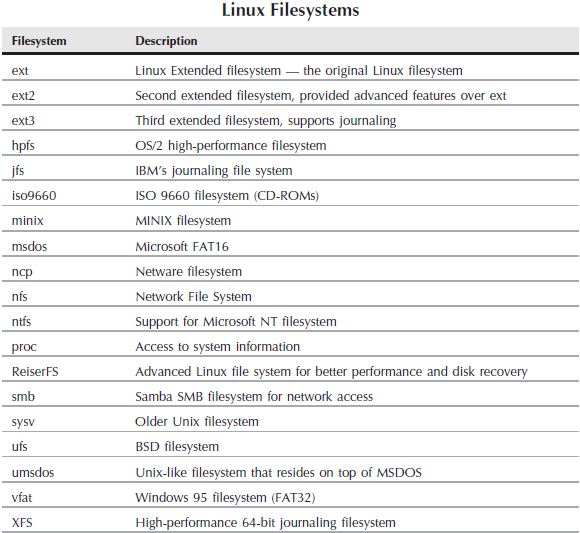
               Major design principles in modern Linux include the need for a multi-user, multi-tasking system that runs Unix-Compatible tools, the filesystems Linux uses, even though the list has grown to a vast number, try to adhere to Unix semantics and it tries to adhere to the Unix networking model. Linux tries to be compliant with POSIX and its programming interface adheres to the SVR4 Unix Semantics rather than BSD behavior. Its main components are the kernel, system libraries, and the system utilities (2).

               Macintosh Mac OS X’s goals were a little different. Mac OS X is a retail paid operating system that under the hood is very similar to Linux that in my opinion is more concerned on appearance while Linux (depending on who makes it) tends to be free and does many of the same things a Mac OS does just quite a bit more advanced. Macintosh OS X is based on BSD (Berkeley Software Distribution) version of the Unix Operating system (3).

               Both Mac OS X and Linux distributions are trying to support open standards. One thing that people forget is that Linux is really (as mentioned above) just a kernel, some libraries and a few utilities. The main standards are brought about by developers and individual projects that are added to the Linux distributions where the projects can be paid or free but most of the time you can find a free version if needed.

    Graphical Interfaces

                Mac OS X and Linux both offer a graphical user interface, however Mac OS X offers a single interface, Aqua in the current versions, and Linux has an ever-increasing number of what they refer to as Desktop Windows Managers. Currently there are over forty six and counting window managers for Linux (27). What does this mean? Too many choices and quite a bit of a learning curve. The only benefit I see to this is that somewhere out there is a window manager that is customized for each user type that won’t confuse them or is tailored to their specific job. However, as a general workstation Mac OS X comes with their new Aqua windows manager that is supposed to be designed for the general user with default application links arranged out to be visually appealing and easily learned. One thing to note is that you can install additional window managers designed for Mac OS X which number almost as much as Linux but with Macintosh focusing on only a few the user experience isn’t as confusing as the one’s in Linux (28).

    Memory

               Both Linux and Mac OS X use similar methods for memory management, Allocation, and Paging. Most of these methods are pretty simple Mac OS X and Linux have similar names for their management routines. Macintosh goes more in depth of a few things such as their use of “Inactive” and “Wired” memory. Inactive memory is ram that isn’t actually being used but it has been recently used by a program. It allows programs to re-allocate the memory if they are used very often but it also allows after a certain amount of time for other programs to capture the memory. This way programs you use often can open faster. Wired memory is memory that can’t be paged using virtual memory such as kernel routines or services that would possibly fail or cause the system to become unstable because they need to operate in the faster main memory. I suspect that Linux uses a similar allocation method but I haven’t been able to find anything to confirm this (4).

               Linux and Mac OS X use virtual memory and memory pages to swap out memory to the primary storage devices on the system. This allows programs to address more memory than is available. For example if a system only has four gigabytes of ram a program that requires 6gb ram would use most of the four gigabytes of ram and have a section of the paging file or the swap partition on Linux. Both Mac OS X and Linux by default use 4k memory pages. Mac OS X is easily changed to be able to use large memory pages while Linux takes some doing to change the default to a larger (1Mbyt on x64 bit hardware) page size (5)(6).

    Processes

               Process management is one area we can compare that is very interesting. Max OS X uses the Mach 3 scheduler that is somewhat similar in appearance to the windows task manager in that processes have a priority of only four types: Normal, System High Priority for threads which have been raised above normal, Kernel mode only that is reserved for threads created inside the kernel that need to run at higher priority, and real-time threads whose priority is based on a well-defined fraction of total clock cycles regardless of other activity. Now this is different than Linux because it still uses the Unix model that creates new processes using a Fork that creates a process control block that contains all the information about the process including its identity (PID), Environment (inheritable properties from parent PID), and its context that handles the scheduling, file table, signal handler, and virtual memory information. In Linux process priority can be changed programmatically or by commands from the terminal; however so far, I have found that Mac OS X process priority can only be changed programmatically according to their developer website but in the question groups online people have stated that you can change the priority similar to Linux through the activity monitor or like Linux running nice or renice. Without hands on experience with a Macintosh I can’t confirm this (7)(8).

                Even though they are quite different from each other both systems use the preemptive scheduling policy to manage the processes currently being worked on this way if a process needs cpu time immediately the process manager can transfer the cpu to another job when needed (9)

    Device management

               Device management is a very important part of the operating system. Without it the system wouldn’t know what resources it has available and in modern systems that use hot swappable devices such as USB devices or SATA drives that can be removed without rebooting the system keeping track is much more important. The information on Mac OS X is listed that the device manager takes care of all these important steps but what happens in the background is pretty much hidden from the public. Linux on the other hand is very documented on how it takes care of this operation.

               Device management in Linux is handled by three components; Udev, HAL, and Dbus. Udev supplies a dynamic device directory containing the devices connected to the system, many systems use the /dev folder for Udev “nodes” that are created and removed as the devices are plugged in or removed. The Hal service gets information from the Udev service and creates an XML representation of that device then notifies the corresponding graphical desktop applications through Dbus that the device exists. Personally, since I use the terminal more than I use a graphical interface I mount devices using the /dev listings all the time. Most servers I set up don’t even have a graphical side to them to save on resources that lay stagnant and could be used for other services and operations (10).

    File management

                File management can be handled in both Mac OS X and Linux through graphical means to add, delete, move, or even set securities using their OS specific utilities. Linux utilities vary based on the distribution and display manager you are using while Macintosh OS X uses similar versions of the same file manager throughout it’s different versions. This would be an advantage to Macintosh users since they wouldn’t have to re-learn the tricks of their graphical environment every time they upgrade, or in Linux’s case switch distributions. Linux currently uses quite a few file managers but the most popular one’s are Konqueror, Dolphin, Krusader, and Nautilus just to name a few (11).

                Both Mac OS X and Linux support terminal commands to allow Unix like control over the file system and have a very similar command structure. Some of the commands include: ls to display a directory, del to delete a file, mkdir to create a directory and rmdir to remove it. They both also use chmod to change read/write permissions and chown to change user/group access for the files on the file system (12) (13).

               One terminal utility I like to use in Linux that isn’t usually included in the different distributions is called Midnight Commander that resembles the old dos file manager but it has the ability to do everything above but also edit files, have multiple folders open at the same time and even ftp to a site and display a list of files on the site for download. Depending on the file system it also has the ability to change what users have access to files and modify the permissions of the specific files itself (chown and chmod commands) (14).

               One big difference is the built-in file system support. Macintosh supports only a few such as the HFS+ which was its primary file system until 2017 when it was replaced with APFS (Apple file system). Other file systems it supports natively are Fat32, exFat and read only NTFS. This is a big limitation however a utility exists called fuse that allows modules to be loaded to support a wide range of operating systems in Mac OS X (16).

               Linux supports many file systems as well with its primary file system in use today being the Extended File System which has evolved from its primary version (EXT) to the newest version of EXT4. The versions have increased file size support, journalizing, directory size extension and many other options. However, with EXT being Linux’s primary partition it still supports a vast number of partitions with either read/write capabilities or just read. If your kernel doesn’t natively support the file system you can either recompile it to support it or compile in modules to support the file system you wish to have. Some support can be added by installing packages that have precompiled modules to instantly obtain the functionality you need (16) (17).

    Here is a small list of the Linux file systems:

    Linux Filesystems - lists several of the most common file systems in linux including ext, ext2, ext3, hpfs, jfs, iso9660, minix, msdos, ncp, nfs, ntfs, proc, reiserFS, smb, sysv, ufs, umsdos, vfat, xfs

    Security

               Both Linux and Mac OS X support users and groups to sort them out. Administrative users such as root can be either disabled by default (usually on Mac OS X by default or some Linux distributions it’s disabled by default). Root is an especially powerful user. With it the entire system can be changed or even corrupted, therefore in best practice it is best to either disable the root user completely or lock it out with a very complicated password.

                As with most operating systems Mac OS X and Linux encourage usage of users that have a lower access level than root. In Linux, a user can install software, delete files that are not important to the system and even crash their desktop user experience. The solution is usually to back up their files and re-create their desktop environment which is easy to do. The main point here is that if there is a crash usually it’s not a system killer, you can recover from it.

                Both operating systems support password restrictions based on complexity, past password similarity, and aging of the password. You can further harden this by implementing Kerberos password management which is available to both systems. One thing Linux has over Mac OS X is the option for SELinux which comes default now. SELinux is complicated to say the least, it operates by controlling how the system operates within itself by controlling “objects” and how they interact with files, devices, sockets, and ports to name a few. For example you can restrict what configuration files a web server can access as part of its configuration by setting a rule to deny access to that specific server software. In Mac OS X you have to port something similar into the system (18) (19) (20) (21).

                Both Linux and Mac OS X come with built in firewalls to block unwanted ports from being accessible or programs access from the outside or from the inside to the network. The Linux firewall is commonly referred to as firewalld and uses iptables commands and the Mac OS X is just named firewall (22) (23).

    Network management.

                This section is going to be the hardest section of them all. First I’m going to approach Linux because of the vast configuration options available. With one Linux computer you can configure it to be for example, a bridge between networks, a router, a web server, file server, ftp server, email server, and the list goes on. It can be used in LAN’s, Peer 2 Peer configurations in a small network, a workstation and even a gaming machine. The possibilities are endless. Protocol support for different network types are vast and growing with each new release of the Linux Kernel. It supports common technologies like ethernet, Tcp/Ip, routing, and even uncommon technologies including token ring, frame relay, DECNet and many more and over a vast amount of connectivity devices such as a Network card, serial port, fiber, wireless technologies. All this but it doesn’t make Julien fries. Although you could install Linux on a raspberry pi and configure it to run a machine that makes Julien fries (24).

               Mac OS X on the other hand is not as impressive. They tend to be tight lipped on what topologies, protocols aside from tcp/ip it would support or even what the server version can do (although it tightly resembles what a windows server offers) (25).

                According to one Mac server site the Mac OS X can act as a server but it is limited. It can do profile management, web services, be a website server and a few other things. Personally, I’m not impressed (26).

    Conclusion

                With these two operating systems being similar yet different my choice would be obvious. Have you guessed it? If you chose Linux you would be right. I have used Linux since the later 1990’s for servers, workstations, network equipment (using it as a router, firewall, webserver, etc) and hands down I trust it over many other operating systems out there including windows.

                Mac OS X tends to be “prettier” than Linux but I rarely use the graphical interface unless I am setting up a workstation. Mac OS X has more standardized graphical tools than Linux since the tools in Linux vary depending on the distribution, X window system and display manager used (KDE, GNOME, etc.) so it makes it somewhat confusing and once you learn the graphical interface for the distribution they change something that makes you need to switch. For example, I used to use RedHat until they decided to charge for it, then I switched to Fedora which RedHat created for its “free” offering but Fedora became so engrossed on being a workstation operating system that I switched to CentOS. These distributions are based off RedHat and I have never tried a Debian based Linux like Ubuntu.

                Linux is friendlier to the system administrator while the Mac tends to be friendlier to the basic end user and limits its roles accordingly.

                The final thought I would like to share is I wish I did have experience with Macintosh no matter the version of the operating system. I have seen them used for audio and video editing and they are supposed to be the best for publications, all the newspapers around here use them exclusively.

    Works Cited

    1. “What made Linus Torvalds develop Linux?”, Quora.com https://www.quora.com/What-made-Linus-Torvalds-develop-Linux, Accessed 20 October 2017.
    2. “Design Principles”, eresources.gitam.edu http://eresources.gitam.edu/comp/gvr(os)/13.2.htm, Accessed 20 October 2017.
    3. “BSD Overview”, Developer.apple.com https://developer.apple.com/library/content/documentation/Darwin/Conceptual/KernelProgramming/BSD/BSD.html, Accessed 20 October 2017.
    4. “Use Activity Monitor to read system memory and determine how much RAM is being used (OS X Mountain Lion and earlier)”support.apple.com https://support.apple.com/en-us/HT201538, Accessed 20 October 2017.
    5. “Chapter 3 Memory Management” tldp.org http://www.tldp.org/LDP/tlk/mm/memory.html, Accessed 20 October 2017.
    6. “About the virtual memory system” developer.apple.com https://developer.apple.com/library/content/documentation/Performance/Conceptual/ManagingMemory/Articles/AboutMemory.html,  Accessed 20 October 2017.
    7. “COP 4610: Introduction to operating systems (Spring 2015)” cs.fsu.edu http://www.cs.fsu.edu/~zwang/files/cop4610/Fall2016/chapter18.pdf, Accessed 20 October 2017.
    8. “Mach Overview” developer.apple.com https://developer.apple.com/library/content/documentation/Darwin/Conceptual/KernelProgramming/Mach/Mach.html#//apple_ref/doc/uid/TP30000905-CH209-TPXREF101, Accessed 20 October 2017
    9. Understanding Operating Systems 7th Edition, Ann McIver McHoes et al. pg 116
    10. “Udev: Introduction to device management in modern Linux System” linux.com https://www.linux.com/news/udev-introduction-device-management-modern-linux-system, Accessed 20 October 2017
    11. “8 file managers to try” opensource.com https://opensource.com/business/15/4/eight-linux-file-managers, Accessed 20 October 2017
    12. “How to set file permissions in Mac OS X” macinstruct.com http://www.macinstruct.com/node/415, Accessed 20 October 2017
    13. “How to manage files from the linux terminal: 11 Commands you need to know” howtogeek.com https://www.howtogeek.com/107808/how-to-manage-files-from-the-linux-terminal-11-commands-you-need-to-know/, Accessed 20 October 2017
    14. “ An introduction to Midnight Commander” tldp.org http://www.tldp.org/LDP/LGNET/23/wkndmech_dec97/mc_article.html, Accessed 20 October 2017
    15. “How to mount and manage non-native file systems in OS X with FUSE” macworld.com https://www.macworld.com/article/2855038/how-to-mount-and-manage-non-native-file-systems-in-os-x-with-fuse.html, Accessed 20 October 2017
    16. “Filesystems(5) Linux Programmer’s Manual…” man7.org http://man7.org/linux/man-pages/man5/filesystems.5.html, Accessed 20 October 2017
    17. “Category: File systems supported by the Linux Kernel” Wikipedia.org https://en.wikipedia.org/wiki/Category:File_systems_supported_by_the_Linux_kernel, Accessed 20 October 2017
    18. “Red Hat Enterprise Linux 4: Red Hat SeLinux Guide” access.redhat.com https://access.redhat.com/documentation/en-US/Red_Hat_Enterprise_Linux/4/html/SELinux_Guide/selg-preface-0011.html, Accessed 20 October 2017
    19. “Chapter 3. Using Kerberos” access.redhat.com https://access.redhat.com/documentation/en-US/Red_Hat_Enterprise_Linux/6/html/Managing_Smart_Cards/Using_Kerberos.html, Accessed 20 October 2017
    20. “Security – Enhanced Darwin: Porting SELinux To Mac OS X” researchgate.net https://www.researchgate.net/publication/249683692_Security-Enhanced_Darwin_Porting_SELinux_to_Mac_OS_X, Accessed 20 October 2017
    21. “40 Linux Server Hardening Security Tips [2017 edition]” cybercity.biz https://www.cyberciti.biz/tips/linux-security.html, Accessed 20 October 2017
    22. “OS X: About the application firewall” support.apple.com https://support.apple.com/en-us/HT201642, Accessed 20 October 2017
    23. “Benefits of using firewalld” firewalld.org http://www.firewalld.org/, Accessed 20 October 2017
    24. “Linux-Networking-HOWTO (Previously the Net-3 Howto)” tldp.org http://www.tldp.org/HOWTO/NET3-4-HOWTO.html, Accessed 20 October 2017
    25. “MacOS Server” apple.com https://www.apple.com/macos/server/specs/, Accessed 20 October 2017
    26. “Get started with OS X Server” help.apple.com https://help.apple.com/serverapp/mac/getstarted/5.1/#/, Accessed 20 October 2017
    27. “What are the best window managers for Linux?” slant.co https://www.slant.co/topics/390/~best-window-managers-for-linux, Accessed 20 October 2017
    28. “What is the best window manager for Mac?” slant.co https://www.slant.co/topics/526/~best-window-manager-for-mac, Accessed 20 October 2017
  • CISS 493 ADE – Server Load Balancing: in Relation to Website Design and Hosting

    Columbia College

    Server Load Balancing: in Relation to Website Design and Hosting

    Rian Booyer

    Instructor Matthew Chrenka

    CISS 493 ADE

    5 December 2018

    Watch my paper presentation on YouTube:

    Abstract

                Clustering is a concept I am very interested in, so I will approach the subject by breaking down certain sections and explaining them as I can. The first section is the introduction explaining why I was interested in the subject and will pose the question of whether clustering computers in my home environment will improve the abysmal performance of an old website I used to take care of. Section two deals with what clustering does and its purpose while section three deals with load balancing clusters. Section four deals with my own experiments here at home with virtualized cluster servers and the results of those experiments. Lastly section five deals with my conclusion on the results of my new understandings of cluster computing with the limited experiments I was able to run.

                I found that even though my resources were limited that separating out the different tasks or jobs of a web server did in fact increase my ability to speed up the serving of the site over the long run and the paper includes some specific information on how I did this using what software platforms, server software, and some details on the experiment I performed to come to my conclusions.

    1. Introduction

                A while ago I hosted a website with a hosting provider and the provider tried to force me to upgrade from a shared hosting to a virtual server on their system due to the fact my website took too many resources from their main system. In my mind, a site that did not get more than fifty unique visitors a month didn’t need to be put on a forty dollar a month server especially since I did not make money off the site since its primary purpose was to provide a service to the community in which I live.

                I moved it off their servers onto an old nasty laptop that didn’t have a screen, keyboard, or any of the usual niceties that systems come with these days. It was basically a motherboard wrapped in plastic with a network port and a SATA hard drive taped to the bottom. This system outperformed the hosting provider I was using at the time which surprised me but got me to thinking about how bad their cluster servers must be that an old laptop most people would toss away could outperform. Thus, I decided to try to understand the clustering of servers in relation to website hosting and if I put my web server into a group of clusters would it improve performance.

    2. What is the purpose of clustering servers?

                Servers are meant to perform specific purposes within a company, but they are expensive with some costing millions of dollars each. However, if you need the power of a mainframe computer but on a much smaller budget, clustering may be an option for your business. The choice is, do you upgrade your single server or mainframe to a more expensive platform, or do you add additional lower-cost servers and connect those servers together into a cluster. Having a cluster will allow you to increase the power of your company’s system using multiple servers to handle requests, add reliability by allowing the addition and removal of systems at will, and provide failover in case problems develop with individual servers. Failed or removed servers are logged by the cluster controller software (or load balancer proxy) as failed and allow the system to be marked as offline. While offline requests are not routed to the server; instead, the cluster control software skips this server and sends the requests to the next available server in line to fulfill the needed purpose of the cluster until it is repaired, or upgrades are completed, and the server is brought back online (Bryhni et al.) (Limoncelli). Clustering also allows you to split up the complicated primary purpose of a computer system into smaller tasks or jobs each handled by a different cluster set.

                For example, back when farming was the primary occupation of the world. Farmers needed a way to transport crops to market. Many of these farmers used horse-drawn carts. In this example, horses represent the servers and the carts represent the load on those servers. The farmers would use the horses to pull the carts, however, what choice does the farmer have if the cart got too heavy for the horse. The first one which is the most obvious is to replace the horse each time the carts got too heavy with a stronger horse at great cost, the second option is to make more trips costing the farmer more money to get goods to market. However, what happens when you get a cart that even the strongest horse can’t pull. The solution they came up with was to keep the original horse and purchase a second horse and hitch it to the cart so that it could be pulled by two horses and thus the cart would make it to market. With the horses working together they could not only use the horses longer before replacement but they would also take longer to wear out. In another way, if a horse got sick you could just substitute with a healthy horse without much impact on the team.

    2.1 Separating the purpose of a system into smaller tasks or jobs

                The purpose of a system is what the system is meant to do, it is where all the tasks come together to make a whole. Many times, however, having a cluster of web servers doesn’t necessarily mean you will increase performance by leaps and bounds especially in the case of serving websites. If the web server is performing the hosting of the web requests for HTTP, HTTPS, DNS, database, and file services then the cluster won’t be running optimally (Paderin).

                To increase the performance to needed levels you need to break up the primary purposes into tasks or jobs. For example, a web server running WordPress on Linux uses a web server software package, a database software package, and the file system to store files that can’t be dynamically generated by WordPress through the use of a database such as the image files, pdf files, and so on. To allow the system to run optimally you split these three segments or jobs into different clusters; One to handle HTTP, https requests using in my case the HTTP project by Apache, Second another cluster to handle the database requests such as a Galera Cluster for MariaDB which is a scalable version of the popular MySQL, and a file server cluster using some sort of networked storage cluster or cluster-based off a distributed file system such as the Lustre project (found at Lustre.org) (Paderin).

                With the jobs split into three different clusters and handled by a load balancing software or hardware device performance can be increased while server hardware requirements are decreased as discussed earlier. All these tasks are controlled by a load balancing proxy to forward requests to the individual servers in the cluster.

    3. Load Balancing Clusters

                Load balancing is the process in which a control software will distribute the task of a cluster to individual servers inside that cluster using a load balancing algorithm. Depending on the algorithm used the purpose is to optimize the functionality of the cluster while equally distributing the workload between different server nodes. If the work isn’t distributed evenly to the different server nodes they may become over or under loaded and performance can suffer and bottlenecks can occur so picking the proper algorithm and technique for the tasks the cluster is to perform is very important (Narwal).

                A load balancing proxy can be software, hardware, or virtualized and each has pros and cons for the specific use. Many Linux based projects that may be used in a cluster usually contain a load balancer as either a compile in option or module and can exist with the software itself or can be compiled into the kernel. Apache’s HTTP project offers the Mod_Proxy_Balancer module that comes with many flavors of Linux to allow simple cluster configuration and balancing using different algorithms (“Mod_Proxy_Balancer – Apache HTTP Server Version 2.4”). I used MariaDB that uses a built-in cluster control software called Galera and a cluster control called MaxScale (Karlsson), there is even a distributed file system that is compiled in called Lustre that I wasn’t able to experiment with but can be found at lustre.org that can create a series of servers with a mirrored file system and kept up to date very fast through the use of file metadata. These are great places to start if you are trying to find free options for starting a cluster in an organization, however, if you are planning on over three servers the paid versions may be needed to simplify the management and deployment of the clusters themselves. Another option would be dedicated load balanced hardware devices that can be brought online and configured quickly. If you are using a cloud service, there are also load balancer options that can be integrated into those as well.

                One option I tried which offers several types is Kemp.  Kemp offers many different types of load balancers that can be loaded onto a server starting at $4,000 plus the cost of a server, hardware-based load balancers also starting at $4,000 but includes the hardware, cloud-based load balancers starting at 0.29 an hour and can be deployed in Amazon Web Services (AWS) or Microsoft Azure, and Virtual load balancers that start at $3,000 per year. There is also a free tier for their load balancers that you load onto a hypervisor such as VMware’s ESXI that can be used however, there is a catch. To remain free the Kemp software must be allowed to “dial home” once every 30 days to retain the license and configuration. This is what I used in my experiments.

    3.1 Load Balance Algorithms

                There are several algorithms that are available on the market for load balancers to use including Round Robin, Randomized, Central Manager, Threshold, Central Queue Algorithm (CQA), Least Connection, and Weighted Least connection to name a few (Tamilarasi, et al.).

                In Round Robbin, each new request is sent to a new server each time as if the servers were arranged in a circle. Round Robin works well if the job requests were handled quickly and efficiently and represented an equal amount of time for the work to be completed. However, this is often not the case and Tamilarasi mentions in his article if the workloads are equal the Round Robin Algorithm works well however if the workloads are unequal they create different weights of work for each server and result in some servers being over-loaded while others may be under-loaded. Some companies such as Kemp keep track of server loads and will skip overloaded servers or servers that are close to maximum load if another server is available with more capacity. This is often referred to as Weighted Round Robin or Randomized Algorithm (Tamilarasi, et al.)

                Another one to mention is the Central Manager Algorithm that keeps track of the load on each server and sends jobs to servers based on the load of the server at that time. Modern servers and versions of this algorithm can exchange accurate measurements of the load on the server and the Central Manager Algorithm can determine if the job will fit within the load availability of each server, however, too much communication between the servers and the algorithm can create a bottleneck and hold up the job. Tamilarasi states that the best use of this algorithm is in a cluster that uses dissimilar server abilities such as mixing old and new servers together. The threshold algorithm is similar except it only communicates three states: Under loaded, Medium Loaded, and Over Loaded back to the algorithm (Tamilarasi, et al.).

                Central Queue Algorithm uses a primary host and routes jobs using a circular FIFO queue. When a computer is ready to handle the job, it sends a request and is issued a job from the FIFO queue and if there are no jobs available it records the order in which the requests for jobs come in, so they are served jobs in the same manner of first in first out (Tamilarasi, et al.).

                The last two I am going to mention are Least Connection and Weighted Least Connection. The two algorithms work by counting the number of connections or jobs each server has and assigns new jobs or requests to the server with the lowest amount of working jobs. With Weighted Least Connection the performance of each server is taken into account before assigning so that if a server has a low connection or job count but the utilization of the server is high the job is sent to the next lowest connection server. For example if a server is working forty jobs and another is working two jobs then under Least Connection the server working the two jobs gets the next job, however, if the server with two jobs is at 100% utilization and the server doing the forty jobs is utilized at 50% then the job is sent to the server with forty jobs (Tamilarasi, et al.).

                There are so many variations and alternate algorithms it is again important to pick the right ones and to perform your load balancing to improve not only its ability to survive a failure but increase its performance as well.

    3.2 Load Balancing Redundancy and Capacity

                According to Thomas Limoncelli of ACM, a cluster should be designed with N+1 redundancy where N is the number of necessary servers and +1 is an extra server and represents the number of servers that can be down while still providing full services by the cluster. The reason behind this is in case one server fails then the cluster isn’t completely over-loaded which would cause a slowdown in the system. The redundancy is not limited to the +1 spare server the system could be designed with any number of servers to allow for more servers to be offline at the same time. For example, you could have and N+10 which would allow for 10 servers to be offline at the same time but still have the cluster working at full power (Limoncelli).

                Problems arise in three ways according to Limoncelli. First, the team can’t agree on why the cluster exists. If some of the team think it’s supposed to add reliability to the whole system while others think it’s supposed to add more power. The real answer should be the purpose is to do both. Secondly, the team needs to understand the measurable capacity of the system and clearly define what level of redundancy N it is supposed to be. The cluster should be verified to be redundant and resilient by measurable metrics and benchmarks without verification the system may not be properly configured to handle the expected loads. The third problem is when the teams don’t monitor the system to verify what has been defined is working the way it should be. A server could be taken offline to verify the N+1 redundancy and if the system is nearly at capacity then the team should add capacity or extra redundancy when required (Limoncelli).

    3.3 Storing files in a clustered environment

                Nikos Mastorakis published an article by Hsien-Tsung Chang that touched on this subject very well. In it, Chang discussed (back in 2009) how storage is important in relation to the world wide web and by extension clustered computers that are now used within the world wide web. One major point Chang makes is to point out that traditional storage types for servers such as RAID cannot fulfill the storage requirements of ever increasing website numbers and needs for more storage that these sites require. He discusses how many file system types have been proposed and tested by many companies including the Lustre file system I mentioned previously and others such as the Google file system (Mastorakis).

                If I understand Chang’s design correctly the storage servers maintain a list of ID’s in memory similar to Lustre’s metadata server that holds the information, access permissions, location of files and replication information in the servers main memory so that locating and accessing files on any of the servers in the cluster is faster and more efficient than if they were all seen as a single distributed file system. Storage space and file information (Buckets) are replicated to multiple servers and thus load balancing can occur because the servers keep a list of duplicates on which servers and can assign a custom access algorithm to assign what requests for that file are routed to which file on what server. It also balances files by allowing recording of server storage and CPU utilization to allow a decision of where to store certain files on what server. For example, a server that stores large files but has low CPU utilization due to the files not being accessed as much may need the files relocated to other servers, so it can serve files that are accessed more often along with the lower accessed files to optimize the cluster (Mastorakis).

    4. My Own Experience and Experimentation

                The primary concern when setting up a cluster is to verify that the servers are loaded with the proper software and data replication is setup and verified to be working properly. Since my website used WordPress and relies heavily on database read and writes it would have to have a load balancer specifically to forward and return those requests. The database server I used as I mentioned earlier was MariaDB setup in a Galera cluster which allows the servers inside the cluster to synchronize data based on the position in a log file. The configuration was simple enough once I had a guide for the setup.

                The first step was to define the server clusters. The first cluster was the database cluster and creation weren’t very difficult with Galera. I named the primary server DBMaster and then I created two slave servers: DBslave1 and DBslave2. I named them this way instead of just DBServer1 to DBServer3 due to the possibility of needing a read/write split cluster where you have one server that handles the read and writes requests and all other servers only handle read-only requests. By doing this it is my hope that the cluster wouldn’t go out of sync. Luckily with the Galera software, it was easy to have three masters that didn’t require the read/write split configuration and kept each other in sync virtually instantaneously even running a benchmark of one million reads and one million writes to verify that the system did indeed operate under stress. On a much larger scale of dozens of servers with a large website a read/write split may be best practice so that the synchronization isn’t complicated, but this may require a load balancing proxy that can break down the requests and forward them to the correct servers based on the need for read or write.

                The second server cluster was the web servers to provide the web content. Two web servers were setup WebHead1 and WebHead2, their names coming from a how-to on the internet, but I also figured that it works because they are the initial servers hit by a user browsing to the website. Each was configured to handle basic HTTP requests on port 80 while incorporating some performance enhancements such as compression and caching on each server. A fresh copy of WordPress was installed, and an old website was imported to the new servers with the database for WordPress pointing to the database load balancer. Once static files were uploaded to the WebHeads the site was up and running.

    4.1 Hardware Used

                There was a total of three physical servers: two servers with VMWare ESXI free hypervisor installed and one old crusty laptop that I used as a web server for almost two years. All the hardware was tested for functionality before use and the servers utilized single network cards connected to a 1Gb network. Internet access was provided by my local ISP at 100Mbps downstream and 4Mbps Upstream.

    4.2 Virtualized Servers

                The virtualized servers were loaded with a very minimal copy of CentOS 7.5 with custom configurations onto the VMWare ESXI Hypervisor at version 6.7.0. The more powerful physical server hosted the web servers and two of the database servers while a secondary server was created on a laptop I purchased last year with an external 2tb hard drive attached for storage. The secondary server handled the primary database server and a free virtualized Kemp load balancer very well considering it was running on USB 3.0 hard drive and a USB 2.0 16Gb Key drive that was running the actual ESXI Hypervisor itself.

    4.3 Load Balancers Used

                Initially, I tried to use free load balancing software as mentioned above but the configuration for the database servers ended up being too complicated and hard to understand. Someone could write several college courses on the configuration of MaxScale and other load balancing proxies for MariaDB and MySQL and you wouldn’t begin to scratch the surface. In contrast, Apaches’ Mod_Proxy_Balancer was actually very simple to implement for the creation of an HTTP web server cluster.

    4.4 Problems found during initial installation

                Initially, with the installation and configuration of the Galera cluster, I found that a line in the script “galera_new_cluster” needed to be changed from “return $exitcode” to “exit $exitcode” fixing a bug that prevented the cluster from being created.

                I had planned on enabling a Distributed File System to handle synchronizing physical files between the web servers but was unable to get the project working. I had tried a few suggestions and eventually found the Lustre project that allowed a kernel module to be installed onto CentOS and a file system to be created for fairly fast synchronization between the webservers but unfortunately, I failed to complete this step in time. I proceded with testing the clusters by manually synchronizing the files as needed since I wasn’t making any changes to the site aside from the initial setup. I also allowed each WebHead to create its own cached copies of pages using Apache Mod_Cache plugin which requires Apache HTTP to assign specific names for specific files under a specified cache directory. I also made the assumption that each WebHeads individual Apache installation would name the files something that may differ between servers so instead of taking the risk I proceeded as is.

    4.5 Initial Results

                After everything was set up and working I used an external site; websitetest.org, to test the response time, first-byte time, and to verify the configuration of caching and that compression of all files was enabled properly.

                The initial load times with the proxies existing on the old laptop server averaged around 10 seconds for full page load while time to first byte was almost 2 seconds. Time to first byte is primarily defined as how quickly a web server can respond to request for data and is literally the first byte received by the user’s browser. Being at almost 2 seconds is unheard of but I have seen it before when my site was sitting on a hosting provider that didn’t provide proper configuration of the database and Apache web server. After going back and verifying the configurations were correct the average was still high, so I turned my attention to the proxy server I had created to see if any optimization could be done there.

                The old laptop I had used for a web server was unfortunately slow with a single processor running at about 1Ghz and 4GB memory, this, however, was not the bottleneck. The bottleneck ended up being the 100Mb network card that couldn’t handle the data transfers and requests between all the different servers. This led me to research into device and virtualized based load balancers and that’s when I found Kemp.

                Another metric I used to benchmark the webservers was the Java-based Apache JMeter that has the ability to send requests to the proxy and measure how many requests are answered before failure. With the old laptop, the system could barely handle 50 requests before timeout failures started to show. Unfortunately, this was very disappointing.

    4.6 Results with a hardware-based load balancer

                The hardware-based load balancer was a lifesaver, it went in easy, was very well documented and came as an OVF file for the VMWare ESXI hypervisor. After installing the virtual machine files, it comes up and asks you for a password and then dials home for a license to be used free. The configuration was simple by just specifying the type of service (HTTP, database, etc.) and the servers and algorithm to be used. The only problem I ran into is with WordPress that requires one specific web and database server to run its administration console through. If you try to run the administration console using the clustered servers it would pop up with errors even though some source configurations were specified in Kemps configuration. I was, unfortunately, unable to solve this problem in time.

                After the configuration was completed I re-ran the tests on websitetest.org and was surprised that the time to first byte dropped from 2 seconds down to approximately 0.250 seconds and total page load time was 3 seconds with the first view at 2.4 seconds on average. To add to my excitement the Apache JMeter results came back much higher as well with the ability to serve approximately 5000 requests per minute instead of the abysmal 50 requests that the old laptop proxy setup was providing.

                During the testing, I found that the Round Robin Algorithm did truly provide the best performance increases for the HTTP cluster while a Weighted Least Connection seemed to improve database request speeds through WordPress. Luckily with Kemp, it’s simple to switch between the different algorithms with a few clicks of a mouse button.

    4.7 Possible bottlenecks with experiment setup

                The primary bottleneck with the setup of the ESXI servers could be several. The first being that the two servers only have access to one network card so splitting some servers to secondary or tertiary network connections to provide additional bandwidth wasn’t possible.

     Secondly, each server utilized only one standard (non-SSD or SSHD) hard drive each and with the more powerful server having an advanced format drive (4k sectors) it was able to handle more servers. In my estimation though, the hard drive performance was probably maxed for file access a good deal of the time.

                Third, the internet connection upstream speed was also a limiter with 4Mbps upstream I was probably limited to about 1Mb upload speeds which would slow down the website load times to users compared to a more business-like upload speed of 100Mbps for a small business connection in our area.

                If I had enough time and resources I would have been able to increase the performance of the servers by adding more hard drives to allow each virtual server, its own dedicated hard drive as well as adding additional network cards to allow for more scalability experimenting.

    5. Conclusion

                The research I have done for this paper has been enlightening even though it has been limited by available resources and monies available for the experimentation on clustering for a web serving environment. I am a little disappointed I ran out of resources to be able to test distributed file systems and load balancing with them and feel that the paper has suffered because of it. I have enjoyed the experience though and have found that the clustering indeed did improve the performance, reliability, and scalability of the website I was using especially once I was able to put into play a proper load balancer between the clusters and the users that had been optimized specifically for that purpose. However, I am certain with enough time I could have made that old laptop work just as efficiently if I had more programming experience to build an interface for the configuration customizations necessary.

    Works Cited

    Bryhni, H. et al. “A Comparison Of Load Balancing Techniques For Scalable Web Servers”. IEEE Network, vol 14, no. 4, 2000, pp. 58-64. Institute Of Electrical And Electronics Engineers (IEEE), doi:10.1109/65.855480. Accessed 3 Nov 2018.

    Karlsson, Anders. “Getting Started With Mariadb Galera And Mariadb Maxscale On Centos | Mariadb”. Mariadb, 2017, https://mariadb.com/resources/blog/getting-started-with-mariadb-galera-and-mariadb-maxscale-on-centos/. Accessed 4 Dec 2018.

    LIMONCELLI, THOMAS A. “Are You Load Balancing Wrong?” Communications of the ACM, vol. 60, no. 2, Feb. 2017, pp. 55–57. EBSCOhost, doi:10.1145/3024926.

    “Mod_Proxy_Balancer – Apache HTTP Server Version 2.4”. Httpd.Apache.Org, 2018, https://httpd.apache.org/docs/2.4/mod/mod_proxy_balancer.html. Accessed 4 Dec 2018.

    Mastorakis, Nikos E. Recent Advances In Computers. WSEAS Press, 2009, pp. 351-356.

    Narwal, Abhikriti1, abhikritiin@gmail.co., and Sunita1 Dhingra. “Analytical Review of Load Balancing Techniques in Cloud Computing.” International Journal of Advanced Research in Computer Science, vol. 9, no. 2, Mar. 2018, pp. 550–553. EBSCOhost, doi:10.26483/ijarcs.v9i2.5820.

    Paderin, Maksim. ANALYSIS OF SERVER CLUSTERING ITS USES AND IMPLEMENTATION. 1st ed., South Eastern Finland University Of Applied Sciences, 2017, https://www.theseus.fi/bitstream/handle/10024/137384/Maksim_Paderin.pdf. Accessed 4 Dec 2018.

    Tamilarasi, S. .., and K. .. Kungumaraj. “Dcwslbq: Dynamic Content Based Web Server Load Balancing Queue Algorithm for Heterogeneous Web Cluster.” International Journal of Advanced Research in Computer Science, vol. 8, no. 8, Sept. 2017, pp. 489–494. EBSCOhost, doi:10.26483/ijarcs.v8i8.4561.

  • CISS 320 ADE – Commercial Uses of Drones

    Rian Booyer
    Instructor Rick Powell
    CISS 320 ADE – Systems Analysis & Design II
    24 June 2017

    Commercial Use of Drones

                Although the term drone over the past several decades has changed with the innovations that have gone into their design, the current definition and target of this paper is the Unmanned Arial Vehicle or UAV. The names between hobbyists and businesses change but the technology remains the same.

                Drones come in approximately three types: fixed-wing, rotary-wing, and multi-rotor. Fixed wing consists of either a single winged design which resembles the Armstrong Whitworth A.W.52 or one that resembles hobby model airplanes with a fuselage and attached wings that resemble a standard commercial jetliner but with electrical motors. Rotary wing drones use a single rotating blade for lift and resembles a helicopter in design and use the Vertical Takeoff and Landing often referred to as VTOL. Multi-rotor drones are becoming more and more popular for hobbyists and business uses alike when you don’t need to cover a large area fast and need VTOL capabilities. The biggest benefit to a multi-rotor over a single rotor design is the shear stability of the drone while in flight and its ability to handle wind shifts and greater weight distribution techniques. With the stability of these drone’s mountable options of cameras, sensors, and other equipment can be attached (14).

                Currently there is a new type of drone being developed which is a hybrid drone that converts from a multi-rotor drone into a fixed-wing drone and back again for use if longer flight times are needed by using the air for lift instead of all the rotors. An example of this type of drone is the SkyProwler being designed by a start-up business called Krossblade as a prototype to their flying car drone the Sky Cruiser (15).

                There are many applications for drones in today’s world with people thinking up new ways to use them every day. A company called Unmanned Vehicle University has a listing of over three hundred possible applications and offer training to new pilots wanting to get their FAA flight certification.

    Flight Restrictions for drones

                As with many flying machines there tend to be many FAA rules and regulations that are there for individual’s safety. If you compare how long other flying technologies have been around: Hot air balloons – sine 1783, Air planes – 1903 to 1905, helicopters – 1939, drone technology is still in it’s infancy. The FAA is constantly redefining the rules and regulations regarding the use of drones in the United States for private and commercial operations. Touching on every regulation would be beyond the scope of this paper and could be a book in of itself, however, mentioning some of them will be necessary.

                The first to mention would be the height limitations for private and commercial drones. Most all drones are by default restricted to four hundred feet above ground level. This is limited so that hopefully people will not be getting in the way of private maned aircraft that are flying overhead. This also leads to another restriction that if you are within five miles of an airport you have to contact the airport for flight clearance even if you are under the 400 feet limit. My assumption is that they wish to prevent further collisions with manned aircraft.

               The drone’s weight is restricted to less than 0.55 pounds which includes the weight of any special attachments such as a camera; however, if your drone is over 0.55 pounds you are required to register your drone with the FAA and the drone must be marked with a registration number at all times. You may register a drone that is more than 0.55 pounds and under 55 pounds if you wish online through the FAA’s website however registry of a drone heavier requires a more thorough registration process (1).

                To fly a drone for work or business you have a few requirements that need to be followed. First off you must be 16 years of age or older, pass an aeronautical knowledge test at an FAA testing center, obtain a “Remote Pilot Airman Certificate”, and be vetted by the Transportation Safety Administration. If an individual already holds a pilot’s license they can just go to the online training course offered on the faasafety.gov site to satisfy the aeronautical knowledge test required to fly.

                Other requirements that are mentioned on the FAA’s website are: you must fly in class G airspace which is airspace that is not classified as controlled and below 14,500 feet above sea level (abbreviated as MSL and is not above ground level as the 400-foot restriction). You must keep the aircraft in a visual line of sight so that you don’t lose track of the drone, the 400 feet above ground level (AGL) applies, must fly during the day, must not fly over 100 miles per hour, must yield right of way to manned aircraft, you cannot fly over people at all, and the drone cannot be launched or flown from a moving vehicle (3). All of these restrictions can be waived however using the FAA’s Waiver request online at the FAA’s website (4).

    Drone use in delivery – Skeet shooting with prizes

                Currently the more popular stories of companies wanting to use drones for delivery are from Amazon.com, Domino’s pizza, and UPS. These three companies are currently developing, implementing or have put in place delivery systems. The main hurdle that these companies are facing are the FAA regulations mentioned earlier. Amazon is lobbying for less restrictive regulations in relation to business operations.

                Amazon’s delivery system is referred to as Amazon Prime Air and promises deliveries in 30 minutes or less using the unmanned drones. They have development centers currently in the United States, United Kingdom, Austria, France, and Israel and currently have a private trial in the United Kingdom to test the actual safety and reliability of the system and according to Amazon will “bring[ing] us one step closer to realizing this amazing innovation for all our customers.” (4)

                In November 2016 Domino’s pizza delivered their first pizza to a customer in New Zealand by drone with their partner Flirty who actually delivered the order. It was controlled using GPS navigation and “overseen by a team of drone experts and a qualified and experienced drone pilot.” Domino’s goal is to reduce delivery time to approximately 10 minutes after the pizza is finished so it is hot and fresh for their customers. They hail this as a major success and promise that it will create jobs for qualified individuals around the world (5).

                Ups is also testing drone technology to aid in the delivery of packages. In February of 2017 UPS used a specialized all electric delivery truck as a launch platform for a delivery drone. According to money.cnn.com the driver “loads a package into the drone’s cargo bin. Then a section of the truck’s roof slides backwards, so that the drone can take off.” The process afterward is completely automated because once the drone takes off the delivery driver leaves to deliver other packages and then rendezvous at another location where the driver can load another package for the drone and repeat the entire process. UPS estimates that this will result in a savings of over $50 million a year and will benefit rural area’s the most (7).

    Video and Photography

                The use of drones for video and photography in the commercial market is currently the largest use so far. With drones equipped with cameras range from the super tiny toys bought at department stores to large commercial drones that can carry large single or multi-use cameras everyone is jumping on the bandwagon (8).

               Today you might go to a sporting arena and see drones buzzing around above your head, more than likely they are taking video and images of the event itself. Journalists are using drones to get multiple angle videos on stories they are reporting on or even to get stories they wouldn’t normally get. Drones are being used as well as photography for weddings so they can zip around for truly unique wedding video’s and photo’s that will give the brides and grooms many amazing years of enjoyment. Drones are even being used in film making for specialized shots and replacing equipment that can cost in the millions to purchase while giving smaller studio’s the ability to produce higher quality films similar to the larger production studio’s.

                Pocket-lint.com recommends that if you wish to take drone video and photography you should start out with a basic inexpensive drone because “You will likely crash the drone during your first few flight attempts, so you don’t want to invest a lot initially.” Once you mastered the flight of a smaller drone you can move up to larger drones that can carry better cameras and video recorders such as the DJI’s Phantom series which is quite popular as during research it seems to be mentioned on quite a few websites for hobbyists (8).

                You need to be careful though if you are taking photos and video as part of a business due to the fact that if you don’t have the proper certifications and licenses the FAA has the right to fine you quite a bit for violating their rules.

               One company that violated those rules, called SkyPan international, settled a fine by the FAA that originally sought approximately $1.9 million dollars in fines and fees for approximately $200 thousand dollars. SkyPan allegedly performed around 65 unauthorized flights between 2012 and 2014 without the proper certifications and waivers, permission from the FAA and air traffic control, and that the drones were not equipped with equipment to signal other aircraft of their presence. It is not stated how high the drones were flying at the time (9).

    Mapping and Land Surveying

                The use of drones has had a beneficial effect on mapping and land surveying. An article by waypoint.sensefly.com interviews four surveyors in their use of drones. All four had positive results from using drones in their work. Their accuracy in their measurements are improved, drones have replaced the need to use ground crews in many aspects of land surveying especially with topographical mapping over dangerous terrain, after all why risk injury to a ground crew when you can fly a drone over the area and take more accurate measurements without the risk. The mapping and survey projects also get finished rather quickly and cost less than standard mapping and surveying jobs using many employee’s (10).

                I would think though land and mapping surveying wouldn’t be the only type of surveying that drones could be used for. If you think about damage control or maintenance on a skyscraper for example having individuals go up and down a skyscraper in a window washing platform can be very dangerous. Using a drone would negate that danger to these individuals and the drone could be equipped with specialized equipment that could detect structural damage a normal human might miss.

    Internet Access

                Several companies are experimenting with providing internet access to both city and rural areas with drones. These drones tend to be large fixed wing drones and can obtain a longer flight time with lightweight batteries that are recharged by solar cells attached to the wings and fuselage of the drone.

                The two main developers over the past few years have been Google with their project Titan, and Facebook’s project Aquila. Both offered the possibility of wireless internet access to remote parts of the country and the world, however, Google’s Titan project was pulled in favor of their Project Loon which uses balloons near the edge of space to beam the internet access to the ground using LTE cellular protocols (16, 17, 18).

                I for one, am looking forward to these types of technologies helping rural areas. In my state, much of the rural areas are still using dial up modems that can’t even surf the internet anymore with the bandwidth requirements and webpage designs being more complex than they were fifteen to twenty years ago. This makes it almost impossible to do anything on the internet. Many people use satellite internet or cellular internet but the data available per month and the latency are pathetic unless you spend hundreds of dollars on plans or equipment to try and extend the data usage.

               Personally, I use around five hundred gigabytes of data per month on my home internet and would hate to be limited to only ten gigabytes. With these projects the hope of extending high speed internet might become a reality in the not so distant future.

    A jack of all trades company

                Several companies have now started using drones for damage surveying. One company called Sensefly has designed a series of drones specifically for surveying either the above-mentioned mapping and land surveying or other types of uses including surveying storm damage for insurance companies, GIS mapping, Humanitarian crisis tracking, animal tracking, agricultural use, among many other ideas and case studies they are working on (13).

                It would take too long to go through all the applications that their company is developing but a few caught my eye. One of the uses would be for agriculture. One of the biggest uses they are designing their drones for is agriculture. Crops can be monitored by flying drones to calculate the yield of the crops, what the crops consist of (are they different plants that are there that shouldn’t be, damage from over watering or drought, blight conditions, infestations, erosion can be monitored by the drones, and even possibly even count how many plants are there and how they are propagating.

     Another application they are developing a use for is environmental monitoring. Their drones can model glacial features to erosion monitoring (as in the agricultural solution) to counting and identifying species in an area (13).

               The glacial monitoring and modeling amazes me because not only is it important but also hard to do. Usually planes and ground teams are used to go out and take measurements of the glaciers to determine if they are changing shape and how much ice is breaking off per year. The ground teams might be necessary for some things but hopefully they wouldn’t need to be next to the edge if a large section would break off.

    Personal Ideas for commercial applications

                Through my research, I have come across some unique drones that have caught my eye and has had me saying “hey that would be good for…” One of these drones is the Loon Copter that is being developed at the Oakland University Embedded Systems Research Laboratory. The purpose of this drone is as many drones starts out with a Vertical Takeoff and Landing platform (VTOL) but with a twist. The Loon can land in water and with the help of small buoyancy tanks actually convert to a micro submarine (11). When I saw the video on their site I thought “wow this could be used for water testing”.

               In a city near me there is an old factory that was used to manufacture oil coolers, charged-air coolers and other cooling packages. Currently the company that operated the plant until March 2012 is under investigation for water contamination that forced the closure of a city drinking well. The company supposedly dumped waste into a lagoon that was contaminated with trichloroethylene, or TCE, which has leached into the soil, air, and water sources around (12).

               This got me to thinking about the Loon and water testing. The Loon would be especially helpful if you needed to test water quality in the middle of a pond or lake by having the ability to fly to the center, landing on the water and collecting a sample from the area. The Loon isn’t designed for this but adding a collection bottle with a self-opening and closing aperture shouldn’t be much of a design challenge.

               Let’s expand on this a little though, with the Loon’s capability to actually steer itself under the water, theoretically, an individual could take water samples from different depths comparing water say at 30 feet and compare it to surface water in the same area to help with research on how the lake “turns over” the water at certain times of the year (during the winter the cold water on top goes to the bottom and in the summer a similar occurrence happens to move the water from the bottom to the top based on temperature).

                Hunting is another use I have thought of. In Missouri, it is illegal to use dogs during deer hunting season but currently Missouri has no laws concerning drones and uses during hunting season.

               I have imagined being out in the woods with an earpiece in my ear and having my brother fly a drone at the upper limit while using a camera (infrared probably would be best) to actually track where the deer are going during that time of day to allow me to position myself to hopefully bag a deer.

               Now please note I don’t do it just for the sport two deer can feed my family for an entire year in meat and it helps with my natural anemia since it contains more iron than regular beef.

    Conclusion

                Going through the complete list of drone uses could be a course or even a book in among itself. The uses are expanding day by day and the drones are evolving at an incredible rate due to advances of flight technology and miniaturization of equipment that, until recently, required much larger aircraft. Non-commercial applications are also expanding with local and federal law enforcement expanding their investigative techniques, search and rescue, crowd control, and many others by the use of drones.

               One day I would like to be standing at the foot of Mount McKinley and fly a drone around to take pictures of its wonders, or maybe just happen to catch an image or video of the northern lights shining behind it.

    Works Cited

    1.  “Unmanned Aircraft Systems (UAS) Frequently Asked Questions”, faa.gov https://www.faa.gov/uas/faqs/,Accessed 15 June 2017
    2. “Getting Started”, faa.gov
      https://www.faa.gov/uas/getting_started/,Accessed 15 June 2017
    3. “Fly for Work/Business”, faa.gov https://www.faa.gov/uas/getting_started/fly_for_work_business/,Accessed 15 June 2017
    4. “Request a Waiver/​Airspace Authorization Small Unmanned Aircraft System (sUAS)” faa.gov https://www.faa.gov/uas/request_waiver/,Accessed 15 June 2017
    5. “Amazon Prime Air” Amazon.com,
      https://www.amazon.com/Amazon-Prime-Air/b?node=8037720011, Accessed 15 June 2017
    6. “Pizza-by-drone a reality with world-first customer deliveries in New Zealand”, faa.gov
      https://www.dominos.com.au/inside-dominos/media/november-2016-pizza-by-drone-a-reality-with-world-first-customer-deliveries-in-new-zealand, Accessed 15 June 2017
    7. McFarland, Matt “UPS drivers may tag team deliveries with drones” money.cnn.com
      http://money.cnn.com/2017/02/21/technology/ups-drone-delivery/index.html, Accessed 15 June 2017
    8. Betters, Elyse “Drone aerial photography explained: Here’s what it is and how to do it”, pocket-lint.com
      http://www.pocket-lint.com/news/130253-drone-aerial-photography-explained-here-s-what-it-is-and-how-to-do-it, Accessed 15 June 2017
    9. Jansen, Bart “Drone-photography company fined $200,000 by FAA”, usatoday,com https://www.usatoday.com/story/news/2017/01/17/faa-drone-skypan/96671342/, Accessed 15 June 2017
    10. “Land Surveying With Drones – An Expert Discussion (Part 1)” waypoint.sensefly.com http://waypoint.sensefly.com/land-surveying-with-drones-1/, Accessed 15 June 2017
    11. “Embedded Systems Research Laboratory”, sites.google.com https://sites.google.com/a/oakland.edu/oar/, Accessed 15 June 2017
    12. Wheeler, Deanna “Modine Manufacturing to close its doors in 2012”,lakenewsonline.com http://www.lakenewsonline.com/article/20111103/NEWS/311039845, Accessed 15 June 2017
    13. https://www.sensefly.com/applications/overview.html?L=0%27A%3D0, Accessed 15 June 2017
    14. “UAV Types: How to Choose Yours?”, baatraining.com https://www.baatraining.com/uav-types-how-to-choose-yours/#, Accessed 15 June 2017
    15. Coxworth, Ben “SkyProwler combines a quadcopter and a fixed-wing airplane in one device”, newatlas.comhttp://newatlas.com/skyprowler-fixed-wing-quadcopter/36154/, Accessed 15 June 2017
    16. Metz, Cade “FACEBOOK’S GIANT INTERNET-BEAMING DRONE FINALLY TAKES FLIGHT”, wired.com https://www.wired.com/2016/07/facebooks-giant-internet-beaming-drone-finally-takes-flight/, Accessed 15 June 2017
    17. Kovach, Steve “Google’s parent company killed its solar-powered internet-drone program”, businessinsider.com http://www.businessinsider.com/google-shuts-down-project-titan-drone-program-2017-1, Accessed 15 June 2017
    18. “Balloon-powered internet for everyone”, x.company
      https://x.company/loon/, Accessed 15 June 2017
  • CISS 280 ADE – Wireless Security And Its Importance.

    Rian Booyer
    Instructor Rick Powell
    CISS 280 ADE – Systems Analysis & Design I
    04 April 2017

    Wireless Security and Its Importance

                Security is an important part of wireless networking. Without proper network security people, could easily steal client information or abuse the network resources. This could even expose businesses to litigation due to their network being used for illegal purposes. Even before the wireless network integration is decided upon. The analyst needs to take security seriously during the planning stage and decide on what they want to provide access to for the specific wireless network and its possible clients. Let’s take the example of a public wireless connection used in a library. The public wireless network would benefit from wireless isolation, VLAN setup or even a combination of the two. If the wireless network is for a business, separating clients into VLANS restricts access to specific resources based on the organizations structure, increasing security. We will be discussing several sections on wireless security and some of what goes on behind the scenes.

    Service Set Identifier (SSID)

                An SSID is one of the most basic pieces of security for a wireless access point or router. The SSID is “a case sensitive, 32 alphanumeric character identifier attached to the header of packets sent over a wireless local area network” (6). A client trying to access a wireless network must have this identifier to even begin the process of authenticating to the wireless network. Without the SSID there is no hope of connecting. Most wireless networks in use today broadcast the SSID openly to allow clients easier access to the network. This is useful for open public access points; however, within a business it could offer a possible security threat. One easy way to start securing your network is to not broadcast the SSID openly, but setup the SSID manually on devices wishing to connect to the network (6).

    Wireless Equivalent Privacy (WEP)

                WEP security was better than nothing in its day. WEP was the first security standard offered for wireless networks and developed by IEEE (3). WEP keys were hexadecimal (0-9, A-F) pre-shared set of four keys generated from a passphrase. Those four keys were switched many times to try and make it more difficult for a hacker to “sniff” the key from packets being broadcast to the access point. Without the four keys a hacker would have an easier time detecting the network key in use and breaking into the system. The network administrator would have to manually enter the key into each client that wanted to access the network. Many older wireless systems used WEP as their standard without any other security types available (3).  My experience started with 802.11b cards that seemed to exclusively use WEP encryption. Later in my career, better encryption was released and the software was updated and integration of more secure solutions that had better security options such as WPA-PSK using TKIP and eventually WPA2-PSK using AES encryption became possible.

    Temporal Key Integrity Protocol (TKIP)

                TKIP is similar to WEP, but it acts as a “wrapper” encapsulating the WEP security in additional algorithms at the “beginning and end to encapsulate and modify it” (2).  It was originally designed to allow clients to upgrade their security on their wireless networks without replacing their legacy equipment. The TKIP wrapper encrypts each packet with a unique key that is much stronger by implementing additional algorithms than the ones used in standard WEP encryption. TKIP is still offered on many routers today for backwards compatibility with older equipment (2).

    Advanced Encryption Standard (AES)

                Advanced Encryption Standard (AES) is a type of block cipher used in many of todays’ wireless devices. It was originally developed by the United States Government to protect classified information (1). Development of AES encryption started in 1997 by the National Institute of Standards and Technology (NIST) as a successor for the Data Encryption Standard (DES). The AES protocol uses 128, 192, or 256-bit encryption. Older wireless routers and access points that had the option for AES in my experience only gave you the choice of only 128 bit or 256-bit encryption (1). Many Small Office Home Office (SOHO) routers and access points today provide AES for security on them while some still providing TKIP through WPA and AES through WPA2 using pre-shared keys.

    Wireless Protected Access (WPA)

                Wireless Protected Access (Technically Wi-Fi protected access) first introduced in 2003 is offered in multiple forms. First off you have WPA-PSK and WPA2-PSK also known as WPA/WPA2 Personal. These methods use a pre-shared key either in TKIP (WPA) or the more advanced AES (WPA2) algorithms to encrypt data between wireless devices (4). Another standard meant for businesses is the WPA/WPA2 Enterprise, which uses 802.1x authentication through a Remote Authentication Dial In User Service or RADIUS server or a type of server called Authentication, Authorization, and Accounting server or AAA (5, Page 2). With the Enterprise standard, the wireless access point must exchange a “secret” key for authenticating to the RADIUS server for access to the network, but also has to pass along the clients’ secret key to the RADIUS server to allow the client to connect and authenticate on the network (5). This is good in an enterprise environment to prevent unauthorized computers from gaining anonymous network access.

                For this I am going to use an example that shows how a wired access protocol could benefit a business with WPA/WPA2 enterprise and a RADIUS proxy server for IP address assignment. The average client accesses the network authenticating through the 802.1x servers to gain access not only to the network but to request assignment of an IP address to their device. Bob, however, wants to gain access wirelessly to bypass security from outside the office and to obtain access to secured network resources. He fortunately does not know the secret keys the RADIUS server is setup to use. Bob uses an open RJ-11 port to plug in a wireless access router. The router tries to get on the network, but since it doesn’t have access to the 802.1x server key’s it is not assigned an IP preventing network access. However, even though this works, if the administrators were using MACSec security on their wireless network the wireless access router would have no access at all.

    Smart Cards, USB tokens and software token authentication

                For this section I only have Wikipedia as a source, it’s not usually allowed but finding specific information wasn’t available except from manufacturers websites. Smart cards, USB tokens and software tokens seem to be the new standard for the strongest security for wireless networks. They work by using an internal code embedded into the device (smart card, usb or software token) to create a “powerful algorithm” that generates a new encryption code every time the token is used. A simple final explanation from Wikipedia (I can hear all the boo’s out there) is:

                “The server will be time synced to the card or token. This is a very secure way to conduct wireless transmissions. Companies in this area make USB tokens, software tokens, and smart cards. They even make hardware versions that double as an employee picture badge. Currently the safest security measures are the smart cards / USB tokens. However, these are expensive. The next safest methods are WPA2 or WPA with a RADIUS server. Any one of the three will provide a good base foundation for security.” (15)

    Wireless Isolation

                Wireless isolation is offered on most business access points and routers as well as many consumer devices. Wireless isolation allows the administrator of the network to “isolate” clients from using anything on the connected wired network as well as not being able to access any other wireless clients connected to the same network. The isolated clients will still have access to specific services such as the internet (7).

                Without wireless isolation, the connected clients are considered a part of the same local network and are treated with the same access as that on a local network. They also have access to the wired network resources that an administrator might not wish them access to. (7)

                Wireless isolation is especially useful in public access situations where anyone, such as a library, can connect. The library would have an “open” network with no security so their patrons can surf the web, check email, access online library resources, shared public printers and much more. Bob, however, being the rascal he is wants to wirelessly sniff packets and capture network traffic to try to steal things such as usernames and passwords from the other clients. Remember there is no encryption on the network such as WEP, WPA, WPA2, so the data is unencrypted. It would be easy for Bob to capture those packets and later search them for the data he wishes to find. If wireless network isolation was turned on it would make it much more difficult for him to capture the packets from other clients. Bob also wouldn’t have access to any wired resources to try and hack the servers or staff computers.

    MAC Security (MACSec) and filtering

                Media Access Control address or MAC address is a collection of hexadecimal characters that identify a network device. Every network device is assigned a unique MAC address at the manufacturer that cannot be changed (8). Specifics on the MAC address are beyond the scope of my paper but if you need more information please check out reference 9 below (19).

                There are some devices that allow you to alter the MAC address using a software interface. Several devices, mainly motherboards with onboard wired network interfaces, allow you to specify a custom MAC address inside the onboard BIOS. This causes problems with MAC security and filtering because some clients can easily get MAC addresses off the network by using a simple non-administrator command prompt in windows and running the command arp -a which displays the MAC addresses the computer has registered in the arp database. The administrator of the network, as a good practice, should block access to the command prompt or terminal, and set security associations on specific commands to help prevent giving out information that could possibly be used to gain unauthorized access to network resources.

                Filtering by MAC address uses an Access Control List (ACL) on the router to either allow or deny devices access to the network, and with more modern wireless access points and routers they allow you not only to specify wireless access lists but wired access lists. The  Netgear R6400 is a good example of a newer wireless router that also allows blocking of wired devices on the network using an Access Control List (19).

                For example, let’s talk about Bob again. When Bob tries to connect the wireless router into the network that uses MAC security access lists to maintain a list of allowed devices. The network router checks the MAC address for the access point Bob plugs into a wired wall port and denies access because the router does not recognize the devices MAC address and rejects the connection. If Bob is smart enough though he could mirror a known MAC address if the access point allows the user to change the MAC using built in software or a custom firmware downloaded from certain sources.

    Restricting access by schedule

                Many modern wireless access points and routers provide the option to restrict access to the network by an actual time schedule. This option can be setup to only allow specific days and times for access. Some more expensive routers and access points have the option of setting up the schedule by MAC addresses if you don’t want specific clients on at certain times. This would benefit many organizations or businesses by limiting access to the hours they are open or by limiting a specific group to the times they should only have access (14).

    Wireless Virtual Local Area Networks (VLANS)

    Figure 1. Showing a sample
    VLAN network (10)

                VLANS have the capability of isolating wired or wireless connections to a “virtual” portion of the network. While the client is connected to the VLAN they only have access to the specific devices and services that the administer specified for that virtual network (10).

                For example, a public library could use a VLAN that isolates all wireless clients to a virtual network that gives them access to the internet, a printer, and scanner. The main office computers on another VLAN that gives them access to the employee network infrastructure, and the administrative network would be isolated from both to keep sensitive information secured. Almost 15 years ago this wasn’t a cheap thing to do and most organizations would either just try to lock down network resources the best they can or just create a system that had multiple network infrastructures which not only requires high initial costs but also high costs to maintain the system.

    Content Filtering and relation to wireless networking

                Content filtering is highly important for schools, libraries, and businesses that need or are required to use it. Network users sometimes decide to try to access undesirable information such as hate crimes, pornogoraphy, and waste time on social media. One of the easiest ways is to setup content filtering that checks what the clients are requesting and blocks them if the admiration decides that they shouldn’t be on specific sites or services. Some businesses use content filtering to restrict access to social networking sites such as Facebook and Twitter to try to keep employee’s working instead of talking to their friends all day. (11)

                From my personal experiences at a library content filtering uses a service provider such as iBoss and Netsweeper that goes through web addresses and labels them into categories that can be blocked by the local administrator. The administrator chooses the categories or specific sites to allow and block on the network. When a client tries to access a website, or service the request is forwarded to the service provider by a router and would receive a response to either block or allow the request. Most large libraries and businesses use local servers that sync the database of URL addresses from the service provider at specific intervals and instead of forwarding the request to the provider it forwards the information to the internal servers improving the performance and can also allow the system to perform its function even if the service providers systems are temporarily unavailable to handle requests.

    HTTPS filtering

                HTTPS filtering can be considered a sub-function of content filtering. HTTPS filtering is used by many public entities and businesses to block sites that are encoded using Secure Socket Layering which causes problems for the content filtering to detect possible security problems. These problems could range from vulnerabilities such as malware, viruses, to software that could possibly harm network resources. Administrators waste a lot of time trying to either detect or repair these security problems and to save money and lost hours they decide to block all HTTPS access. Since HTTPS is encrypted it is hard for security software to catch the “problems” that some sites try to maliciously slip onto computer systems. HTTPS filtering can be setup multiple ways to either block all HTTPS sites and services on the internet, or with specific filters, the system can decode the encrypted page, check the information, then re-encode the page and send it to the user (13). Modern search engines, specifically Google, penalizes web pages that use http instead of https because they wish for the internet to be more secure (12).

    RF shielding for buildings

                RF shielding works by attenuating the wireless signal so that it cannot pass outside of the confines of your building (or section of a building), to help prevent unauthorized access.

                RF shielding takes on multiple forms, it can be as simple as a special type of paint used on your walls and special window film that reduces the signal, to building actual Faraday cages into the walls of the building (18).

                Most wall paints and window films will attenuate the signal between “40dB to 80dB” while a Faraday cage will attenuate the signal depending on how complicated the actual cage is designed.  Faraday caged walls are usually too expensive for smaller organizations to implement so they usually use the paint method which is considerably more cost effective to implement (18).

                Hospitals are one type of organization that commonly uses RF, ionizing radiation, and other types of shielding to block unwanted signals inside the hospital. The types of RF and radiation they shield against range from X-rays to general wireless signals generated anywhere from the 900mhz band to the 5ghz band where many cell phones and wireless devices operate and can cause problems with their internal equipment (18).

    Conclusion

                My past experiences with wireless security has helped a lot with writing this paper. At home I have had to implement some, but thankfully not all of, these security protocols for my home network. I personally use a non-broadcasting SSID, WPA2-psk personal and MAC filtering. The reasoning for this is because at one time I didn’t secure my network with the MAC filtering and a visiting kid could pull the configuration information including the password from his computer then accessed my network from outside the house and downloaded fifteen files that violated the DMCA, my internet provider was not happy.

                When I worked for the library, many of these options for security were not available at the time. We were basically starting out with an old 802.11b network with very basic routers. We used a WEP key that we changed every day; patrons would have to ask for it which annoyed them to no end. My solution for someone just driving up after hours with that day’s key and, well doing things they shouldn’t be, was to install a basic light switch that controlled the device that injected Power Over Lan for the routers. After hours the librarians just switched the equipment off on their way out thinking the switch was just another light.

    Works Cited

    1. Rouse, Margaret “Advances Encryption Standard (AES)” Techtarget.com,
      http://searchsecurity.techtarget.com/definition/Advanced-Encryption-Standard, Accessed 5 April 2017.
    2. Rouse, Margaret “TKIP (Temporal Key Integrity Protocol)” techtarget.com, http://searchmobilecomputing.techtarget.com/definition/TKIP ,Accessed 5 April 2017
    3. “What is a WEP Key?”, lifewire.com, https://www.lifewire.com/what-is-a-wep-key-818305 , accessed 5 April 2017
    4. “Understanding WPA-PSK and WPA2-PSK Authentication” juniper.net, https://www.juniper.net/techpubs/en_US/network-director1.1/topics/concept/wireless-wpa-psk-authentication.html , Accessed 5 April 2017
    5. Geier, Eric “moving to WPA/WPA2-Enterprise Wi-Fi Encryption” ciscopress.com, http://www.ciscopress.com/articles/article.asp?p=1576225 , Accessed 5 April 2017
    6. Beal, Vangie “SSID – Service Set Identifier” webopedia.com, http://www.webopedia.com/TERM/S/SSID.html , Accessed 5 April 2017
    7. Hoffman, Chris “Lock Down Your Wi-Fi Network With Your Router’s Wireless Isolation Option” howtogeek.com, https://www.howtogeek.com/179089/lock-down-your-wi-fi-network-with-your-routers-wireless-isolation-option/ , Accessed 5 April 2017
    8. Fitzpatrick, Jason “What Exactly Is a MAC Address Used For?”, howtogeek.com, https://www.howtogeek.com/179089/lock-down-your-wi-fi-network-with-your-routers-wireless-isolation-option/ , Accessed 5 April 2017
    9. “Introduction to MAC Addresses” lifewire.com, https://www.lifewire.com/introduction-to-MAC-addresses-817937, Accessed 6 April 2017
    10. Tetz, Edward “Wireless Network Security: Isolating Users With Vlans”, dummies.com http://www.dummies.com/programming/networking/cisco/wireless-network-security-isolating-users-with-vlans/ , Accessed 6 April 2017
    11. Rouse, Margaret “Content Filtering (information filtering)”, techtarget.com, http://searchsecurity.techtarget.com/definition/content-filtering , Accessed 6 April 2017
    12. “Google to Prioritize the indexing of HTTPS Pages”, searchenginejournal.com, https://www.searchenginejournal.com/google-to-prioritize-the-indexing-of-https-pages/147179/ , Accessed 6 April 2017
    13. “ HTTPS Content Filtering Solution”, webtitan.com, https://www.webtitan.com/https-content-filtering-solution/ , Accessed 6 April 2017
    14. “Setting Up Access Restrictions on a Linksys router using the classic web-based interface”, linksys.com, http://www.linksys.com/ph/support-article?articleNum=136710 , Accessed 6 April 2017
    15. “Wireless Security” Wikipedia, https://en.wikipedia.org/wiki/Wireless_security#Smart_cards.2C_USB_tokens.2C_and_software_tokens , Accessed 6 April 2017
    16. Geier, Jim “How to: Improve Wireless Security and Performance with Shielding” wireless-nets.com, http://www.wireless-nets.com/resources/tutorials/rf_shielding.html , Accessed 6 April 2017
    17. Scarpati, Jessica, “Wireless Security Protocols: The difference Between WEP, WPA, WPA2” techtarget.com, http://searchnetworking.techtarget.com/feature/Wireless-encryption-basics-Understanding-WEP-WPA-and-WPA2 , accessed 6 April 2017
    18. “Shielding in buildings” archtoolbox.com, https://www.archtoolbox.com/representation/architectural-concepts/shielding-in-buildings.html , Accessed 6 April 2017
    19. “How do I configure Access Control or MAC Filtering on my router using the NETGEAR genie user interface?” Netgear, https://kb.netgear.com/23289/How-do-I-configure-Access-Control-or-MAC-Filtering-on-my-router-using-the-NETGEAR-genie-user-interface?cid=wmt_netgear_organic , Accessed 6 April 2017.